Get an AI app on your phone and find your way around
Which app to get, how to install it safely, where the buttons are, and how to paste in a prompt from this site. Five minutes, free.

By Nick
On this page
- Five minutes
- Free
- Beginner
1. Pick one
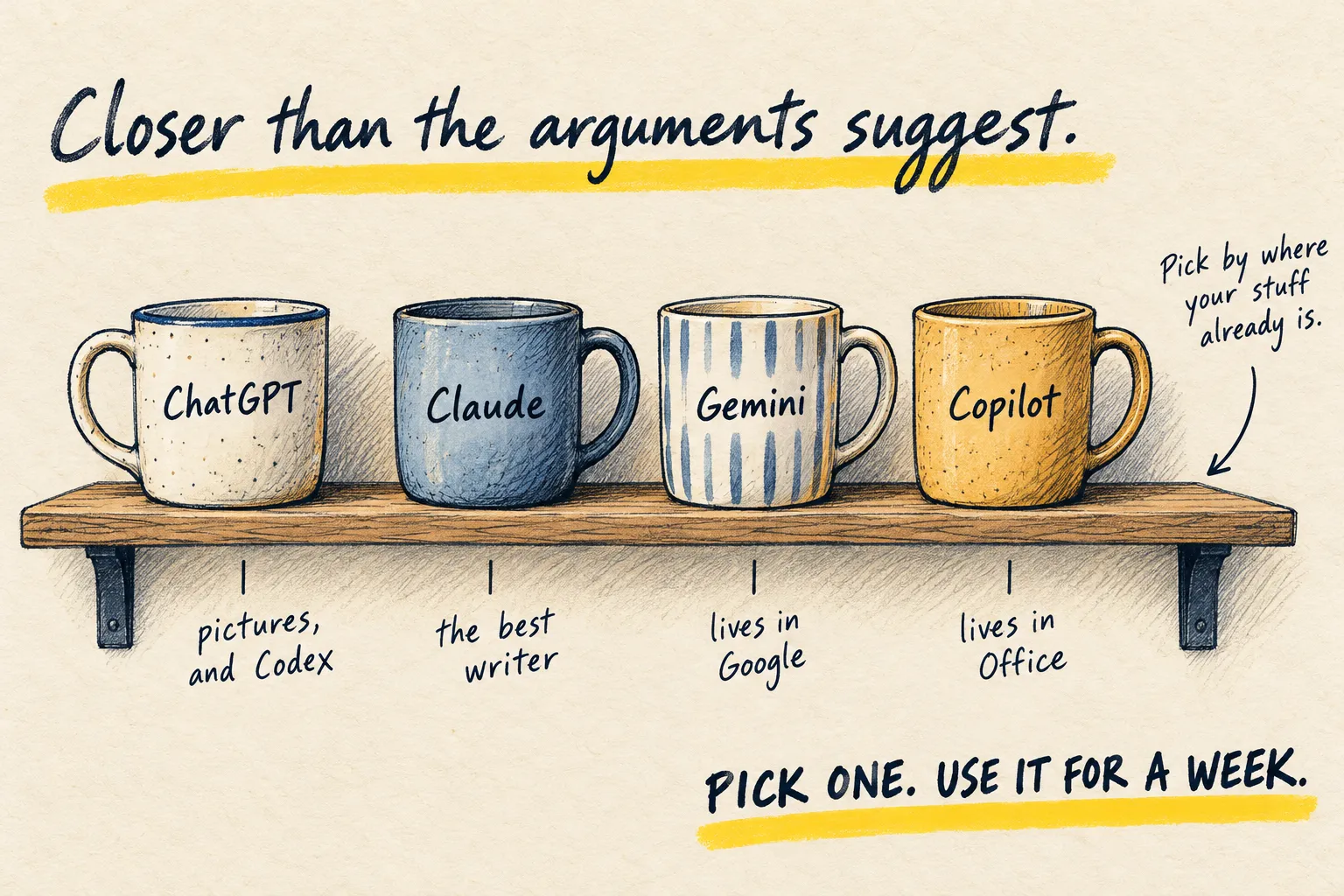
When a guide here says “the app”, it means any one of these three. They all do the same everyday jobs, and all three are free to start:
- ChatGPT, made by OpenAI
- Claude, made by Anthropic
- Gemini, made by Google
Not sure? Take ChatGPT. If you want the reasons, read which AI should you use.
2. Install it and sign in
Open the App Store (iPhone) or Google Play (Android) and search for the name. Check the maker’s name under the app (OpenAI, Anthropic or Google) before you tap Get or Install. There are lookalike apps that charge you for the same thing.
Open it and sign in with your Google or Apple account, or an email address. Skip any offer to pay; the free plan is enough for everything here.
On a computer, go to chatgpt.com, claude.ai or gemini.google.com instead. Same thing, bigger screen.
3. Learn four buttons
- The message box at the bottom of the screen. Type here, then tap the arrow to send.
- The plus (+) beside the box. This is how you add a photo, take one with the camera, or attach a file.
- The microphone beside the box. Tap it to speak instead of typing.
- New chat, near the top: a pencil-and-paper icon, or in the menu (the lines or your initial in a top corner). Start a new chat for each new job, so the last one doesn’t get mixed in. Your old chats are kept in that menu.
The icons move a little between updates. If you can’t see one, it is usually behind the plus.
4. Paste in a prompt from this site
A prompt is just the message you send. The grey boxes on this site are prompts ready to use.
- Tap Copy in the corner of the grey box.
- Switch to the app, press and hold inside the message box, and tap Paste.
- Change anything in [square brackets] to your own details, then send.
Hello. In two sentences, what can you help me with today?
I can explain things, write or tidy up messages, plan meals or trips, and read photos of letters, bills or labels for you. Tell me what’s on your plate today and I’ll suggest where to start.
That's it working. Everything else on this site is a better message in the same box.
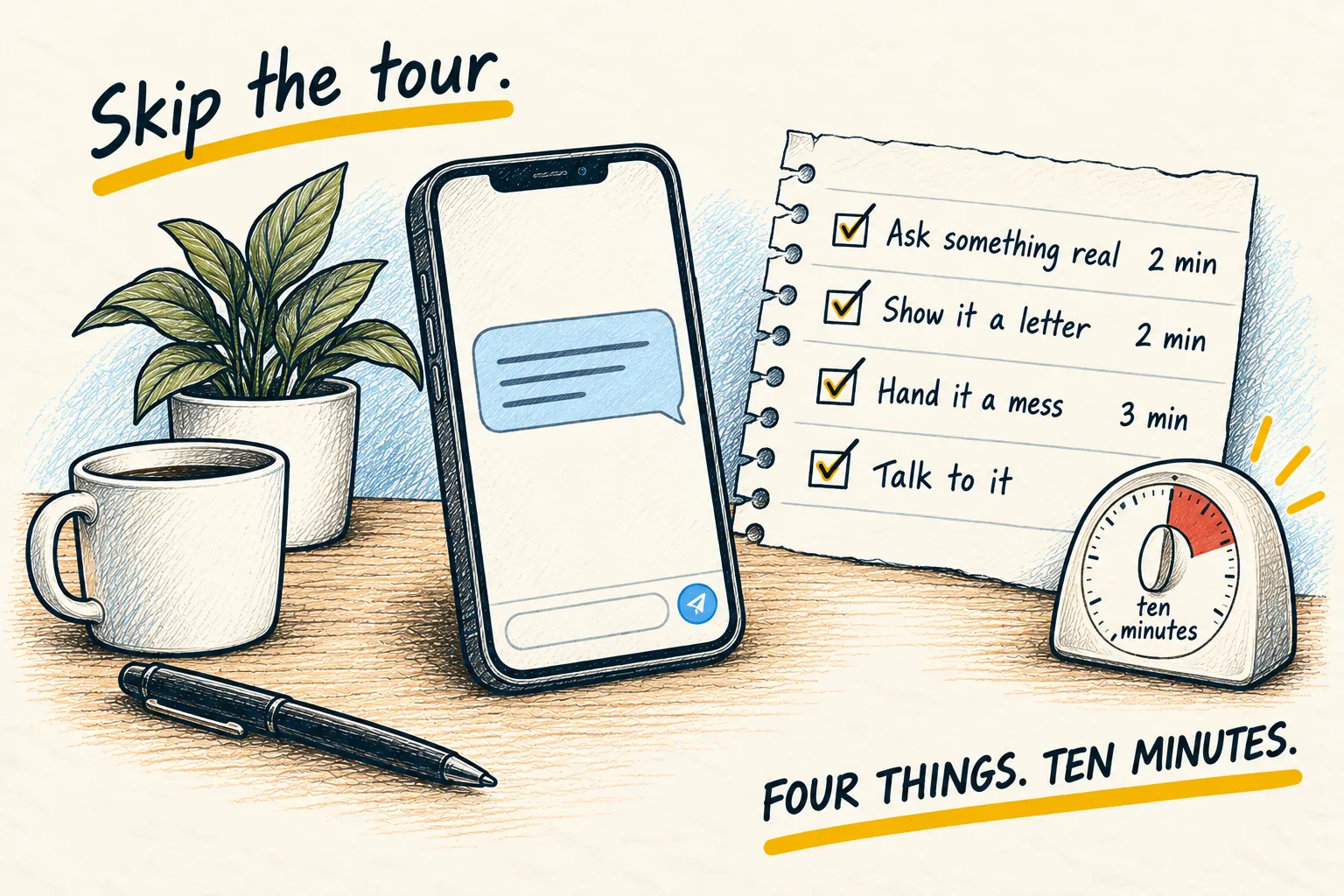
Next, spend ten minutes trying four useful things.