Before you add an MCP server, check what it can do
Connecting an MCP server hands your AI new powers, sometimes including sending and deleting. A ten-minute check of who made it, what its tools do, and how to take it away again.

By Nick
On this page
- About 10 minutes per server
- Nothing for the check; some servers and services charge
- Intermediate
Before you start
Learn
MCP, decoded
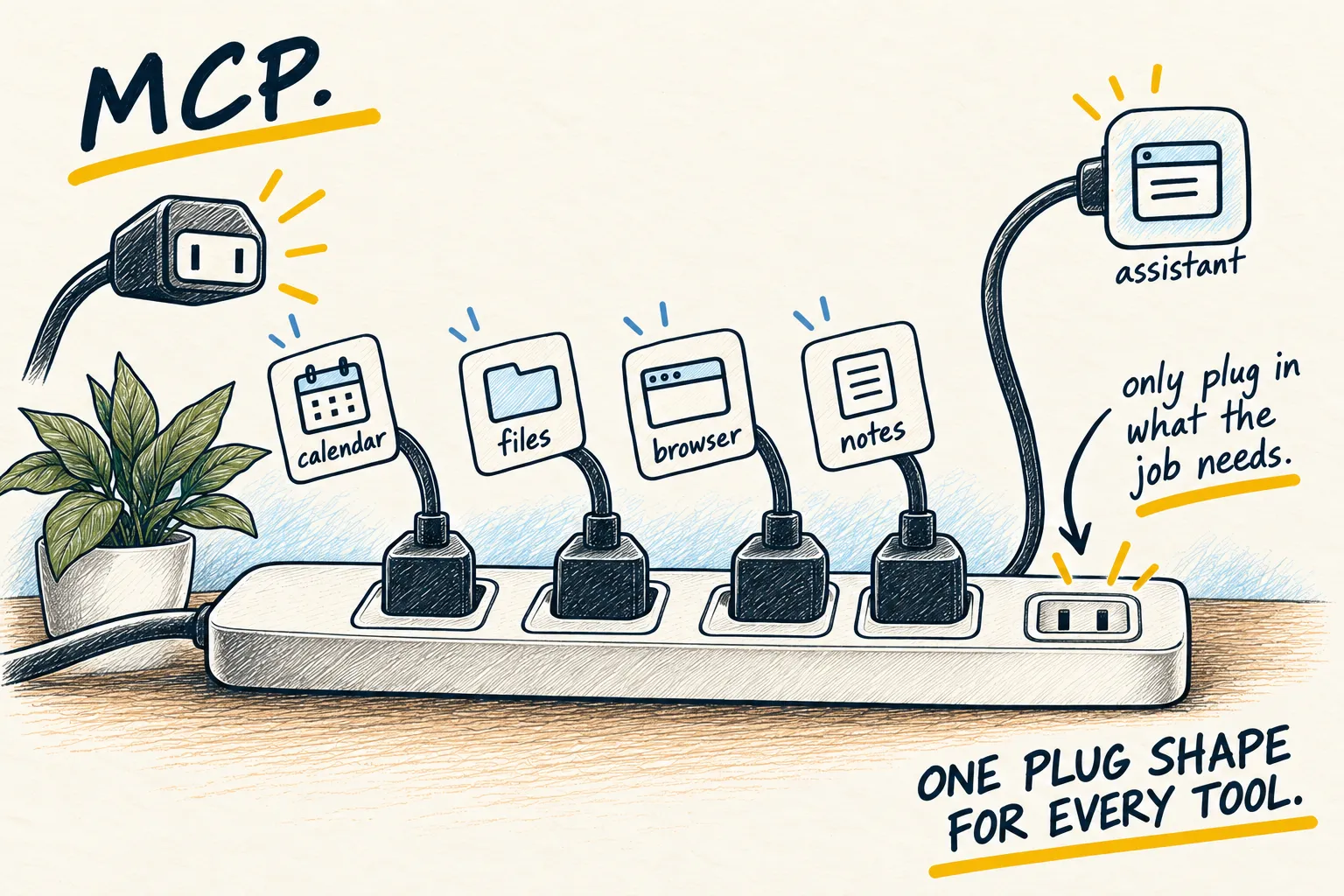
MCP is the plug standard that lets an AI app connect to other tools. The plug itself is neutral. What matters is what is on the other end, and the official specification is frank about it: tools “represent arbitrary code execution and must be treated with appropriate caution.” The protocol cannot enforce safety; the app and the server have to.
1. Check who made it
Before anything else: is this server from the company whose service it connects to, or from someone else? Neither is automatically good or bad, but you should know which.
- The service’s own server, linked from its official site or documentation: the usual best bet.
- Someone else’s: look for a public source code page, recent updates and a named maintainer. If you cannot tell who is behind it, do not connect it.
Anthropic’s own advice in the Claude Code documentation is one line: “Verify you trust each server before connecting it.”
2. List its tools before you use any
A server is a bundle of tools, and the tool list is the honest description of what it can do. After adding it, and before asking it to do anything, ask:
List every tool the [server name] server gives you. For each one, say in plain English what
it does, and mark it READ, WRITE, SEND or DELETE. Do not run any of them.
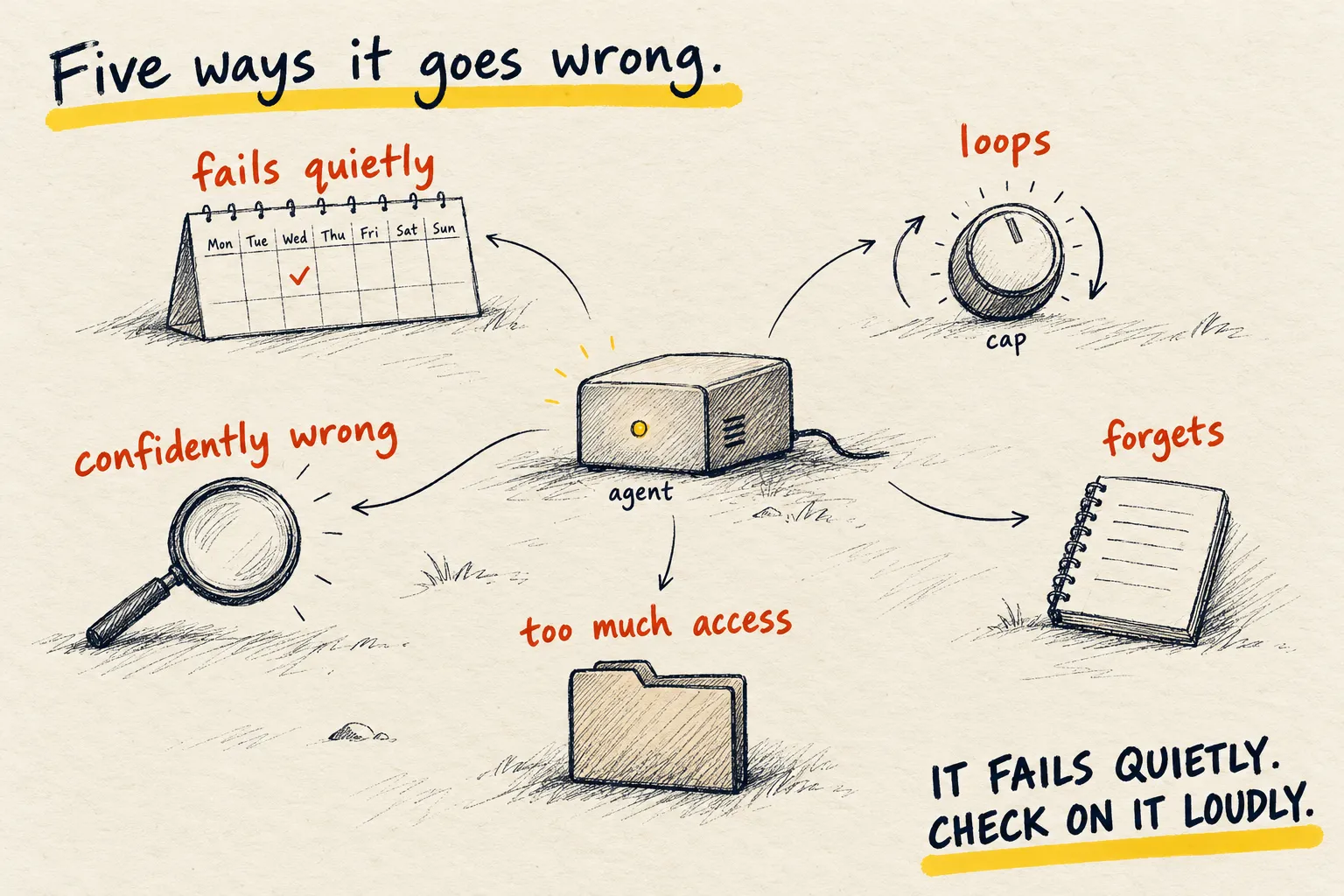
Read the list. A calendar server that can read events is one thing. One that can also send invitations to everyone in your contacts is another. Anything marked SEND or DELETE gets extra thought.
3. Start with the least access
- Keep it to one project. In Claude Code, a server you add is local to the current project by default. Leave it that way until you trust it.
- Say no to the risky tools. You can block a single tool in Claude Code’s settings with a
deny rule. Each MCP tool is named
mcp__plus the server name plus the tool name:
{
  "permissions": {
    "deny": ["mcp__calendar__delete_event"]
  }
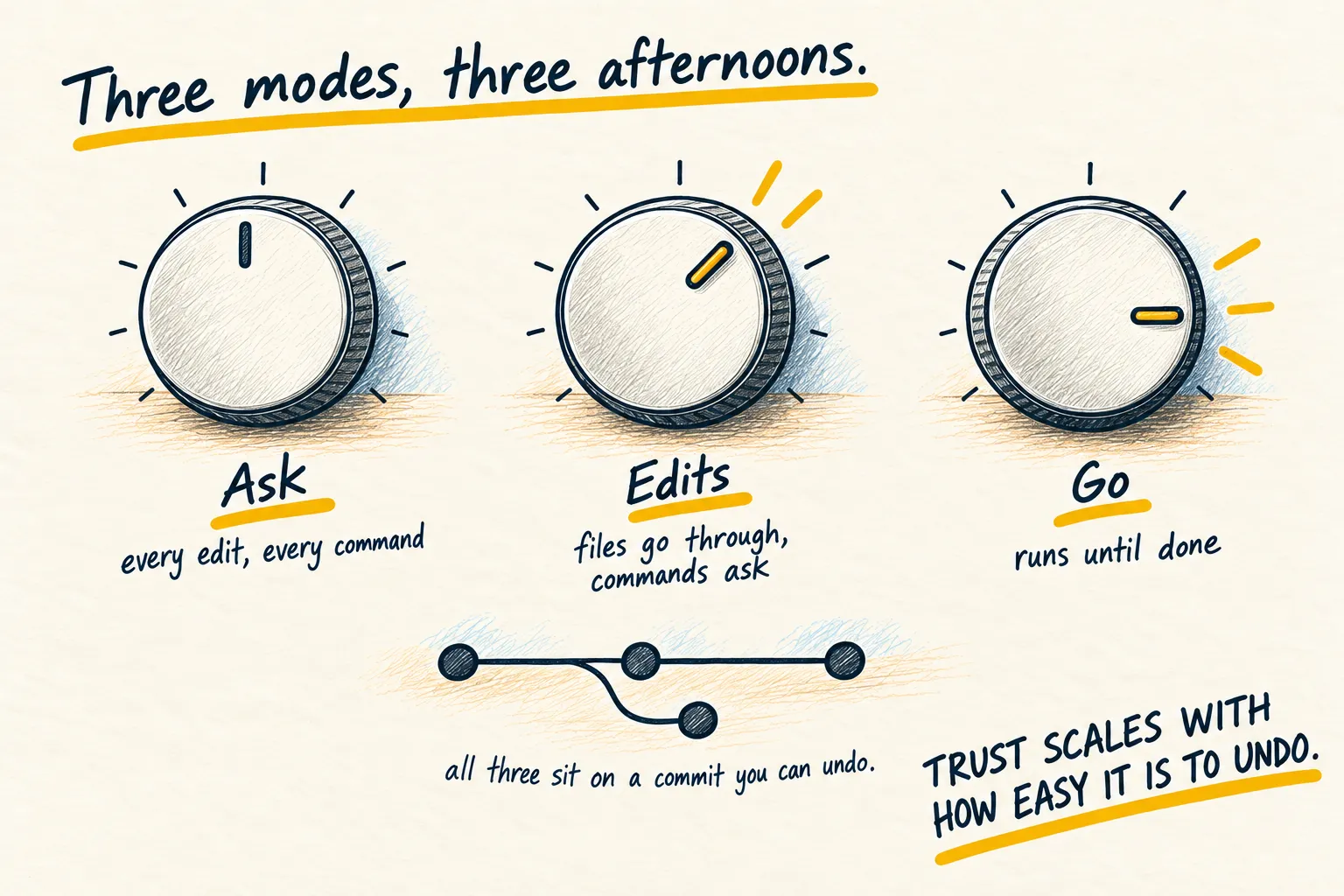
}- Keep the approval prompts. Leave Claude Code in a permission mode that asks before it acts, at least for this server.
- Pick the narrowest sign-in. If the service asks what to allow, choose read-only when it is offered. Not every service offers that choice.
4. Try something harmless first
Ask for one read-only job on information that does not matter, such as “what is on my calendar next Tuesday?”. Then open the real app and check the answer matches. If it is wrong, or the server tries to do more than you asked, remove it.
What working looks like. It answers the read-only question correctly, asks before any tool that changes something, and you could explain to a friend what each of its tools does.
5. Watch for instructions hidden in content
Servers that fetch outside content, like web pages, emails or shared documents, bring that content into the conversation. Some of it can be written to give your AI instructions. This is called prompt injection, and Anthropic names it as the risk to watch for with these servers.
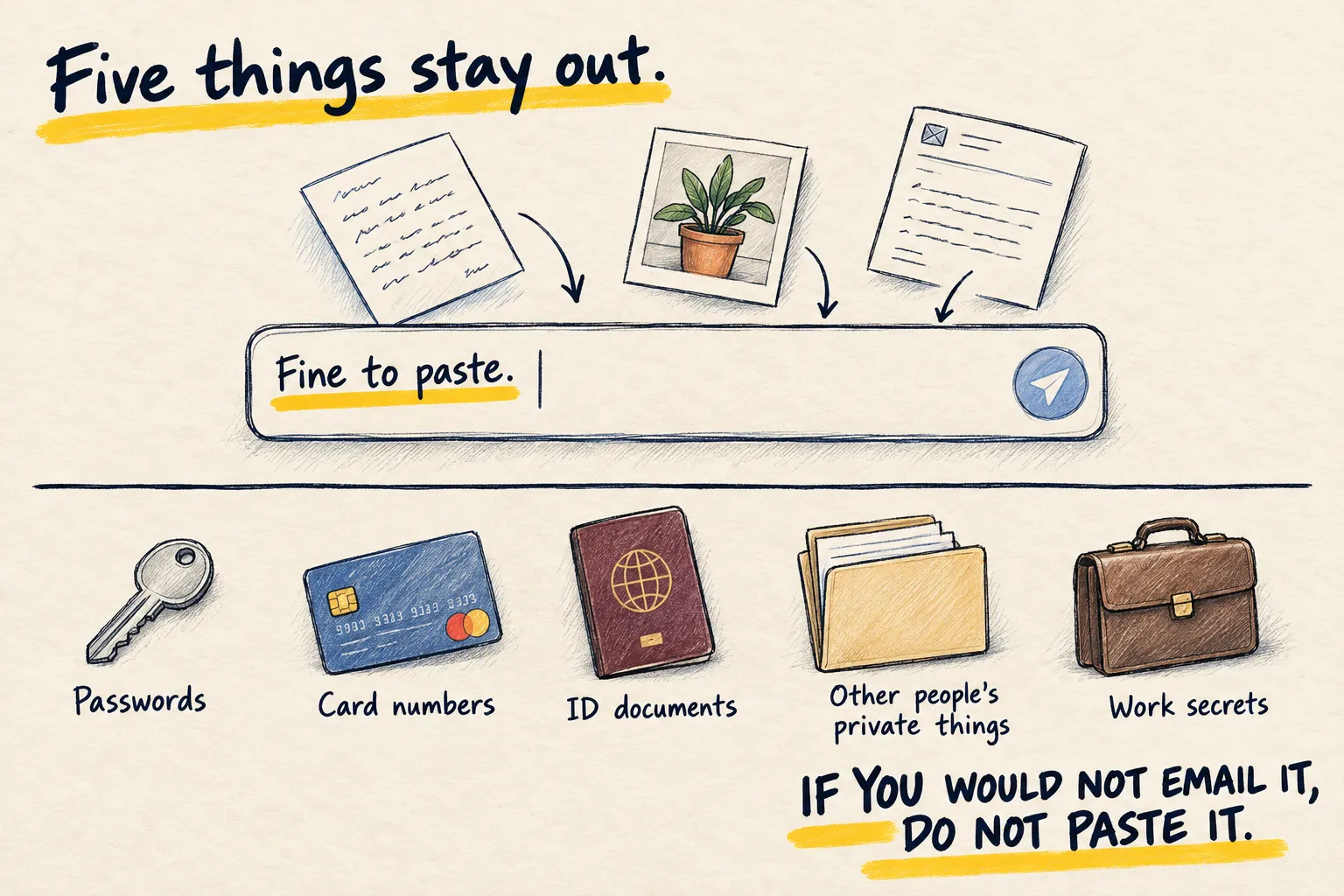
The defence is the same habit as step 3: the AI asks, you read, you approve. Never approve a send or delete you did not ask for, however reasonable the explanation sounds. The what never to paste page covers the other half: keep the really sensitive things out of reach in the first place.
6. Remove it when you are done
In a terminal:
claude mcp list
claude mcp remove calendar
Removing a remote server in Claude Code also deletes the sign-in tokens it stored. Then go to the service’s own account settings, find the connected apps page, and revoke access there too. A server you no longer use is access you no longer need.
Common questions
Is MCP safe?
What is prompt injection?
Does removing the server cut off its access?
Where are my servers listed?
What to do next
Related reading
Learn
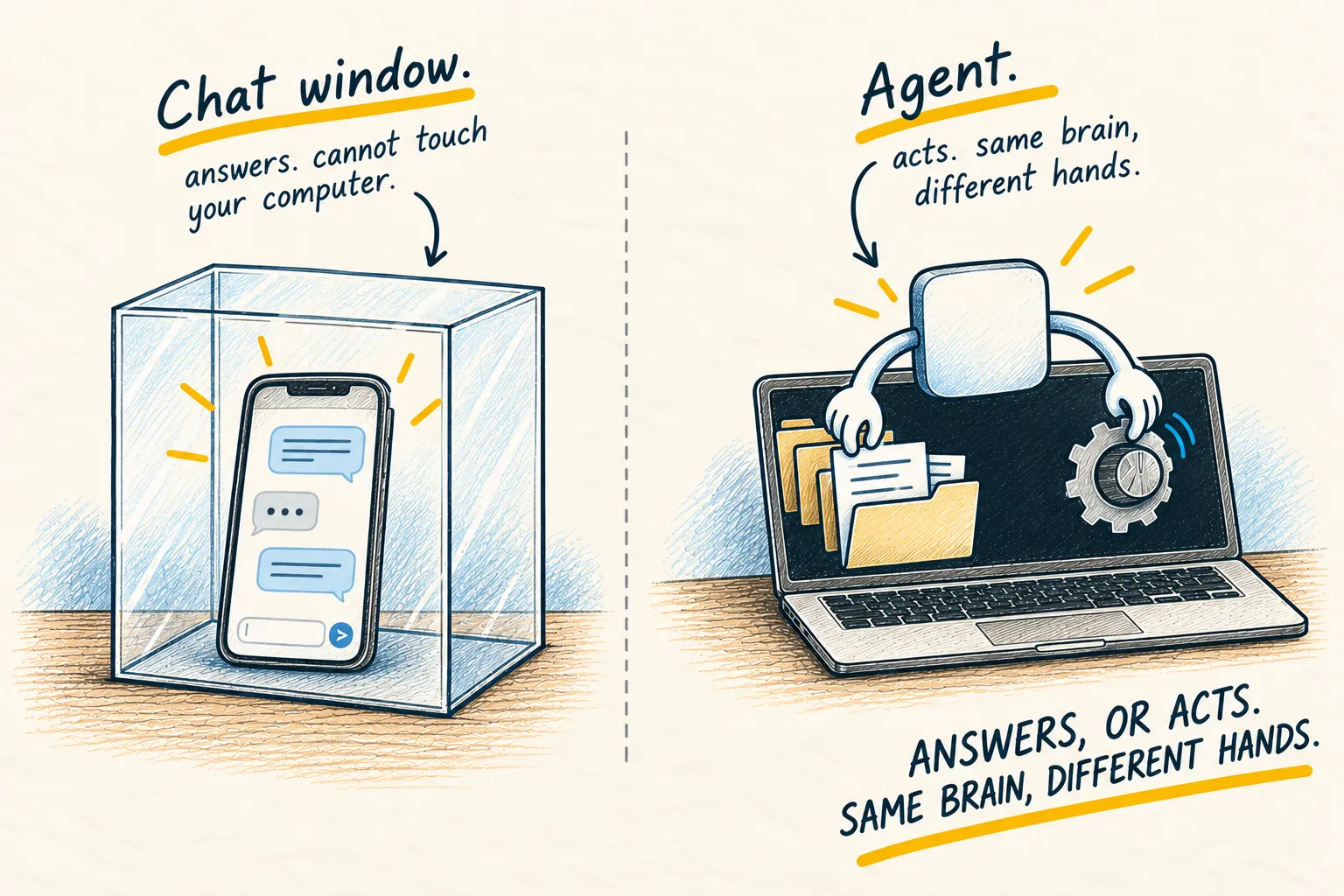
What is an AI agent?