Install Hermes Agent on a Mac or Windows (no server needed)
Hermes Agent now has a desktop app for Apple Silicon Macs and Windows 11, plus a one-line installer for Windows 10. How to install it, connect a model and know its limits.

By Nick
On this page
- Minutes to install, longer to pick a model
- Free app. You pay for the AI model it uses
- Beginner
Before you start
Learn
What is an AI agent?
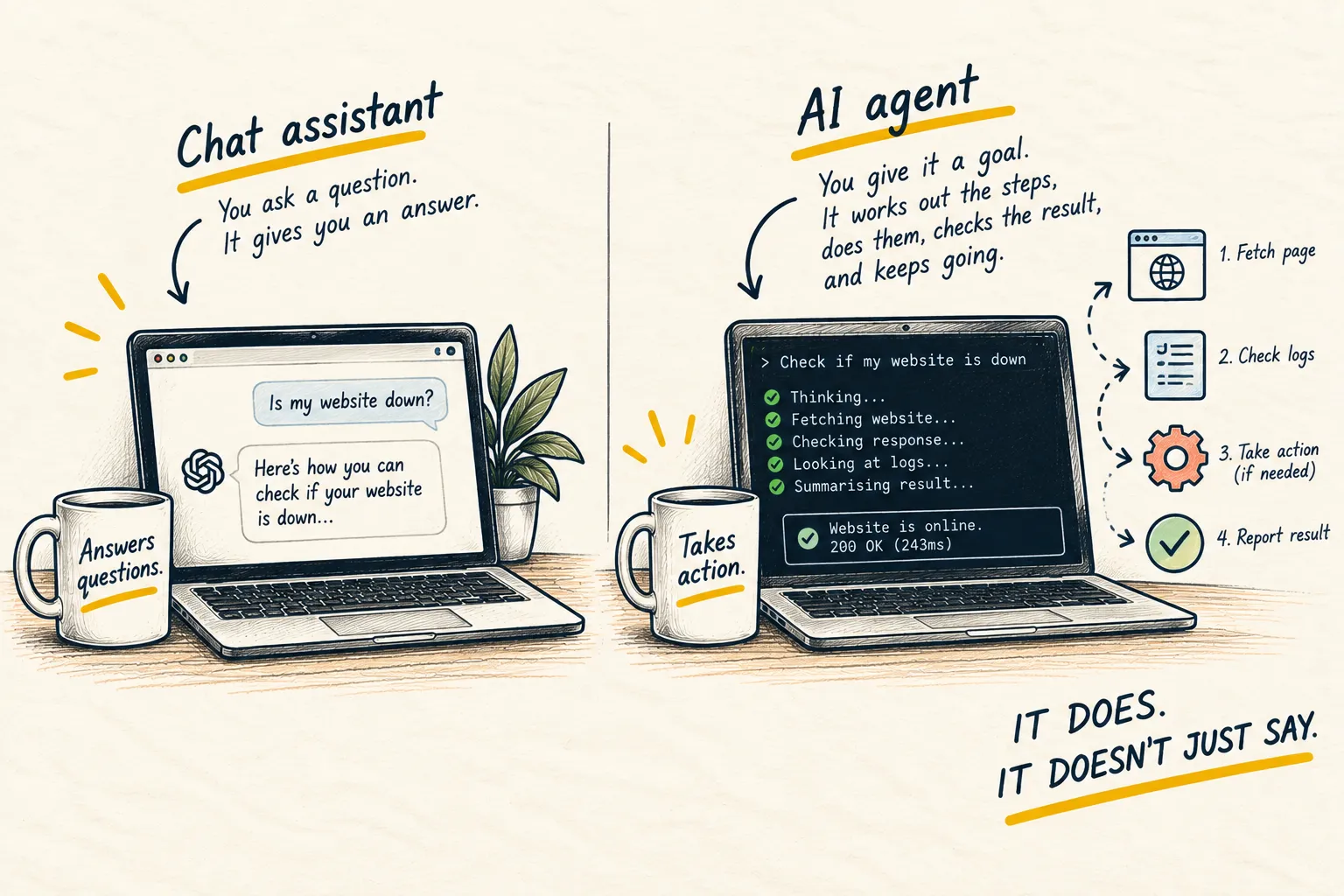
Hermes Agent is an open-source AI agent from Nous Research: an assistant that can use tools, remember things between sessions and run jobs for you. You used to need a rented server or the terminal to run it. Now there’s a desktop app, so the laptop you already have is enough to start.
1. Check which route is yours
Three routes, depending on your computer:
| Your computer | Route |
|---|---|
| Mac with an Apple chip (M1 or later) | Desktop app |
| Windows 11, version 22H2 or later | Desktop app |
| Windows 10 | One command in PowerShell |
| Mac with an Intel chip | Not officially supported (see the FAQ) |
On a Mac: Apple menu, then About This Mac. If it says Chip: Apple M-something, you’re set. If it says Processor: Intel, the desktop app won’t install.
On Windows: press the Windows key, type winver and press Enter. The window shows your
Windows version.
2. Install the desktop app (Mac or Windows 11)
Go to the Hermes Desktop download page and download the file for your computer.
- Mac: open the downloaded DMG file and drag Hermes into your Applications folder. Then open it from Applications.
- Windows 11: open the downloaded
.appinstallerfile. Windows App Installer takes over and installs Hermes like a Store app.
The download already contains everything Hermes needs, so there’s nothing else to install first. The app checks for updates by itself and offers a one-click update.
3. Or install with one command (Windows 10)
The desktop app needs Windows 11, but Windows 10 can run Hermes from the terminal. Open PowerShell from the Start menu and paste:
iex (irm https://hermes-agent.nousresearch.com/install.ps1)It doesn’t need admin rights. When it finishes, close PowerShell, open a new one, and type
hermes to start. Once it’s installed, hermes desktop opens the app version too.
That line downloads a script and runs it, so it’s worth opening the address in a browser first to see what it does. That’s good practice for any installer, not just this one.
4. Connect it to a model
Hermes is the agent; it needs a model to do the thinking. The first time you open it, it walks you through choosing a provider. The Hermes docs list these among the easiest:
- Nous Portal: a Nous Research subscription, one sign-in, many models.
- A ChatGPT subscription: sign in and it uses OpenAI’s Codex models on your plan.
- Claude: either an Anthropic API key, billed per use, or a Claude Max plan with extra usage turned on.
- OpenRouter: one API key that reaches models from many companies.
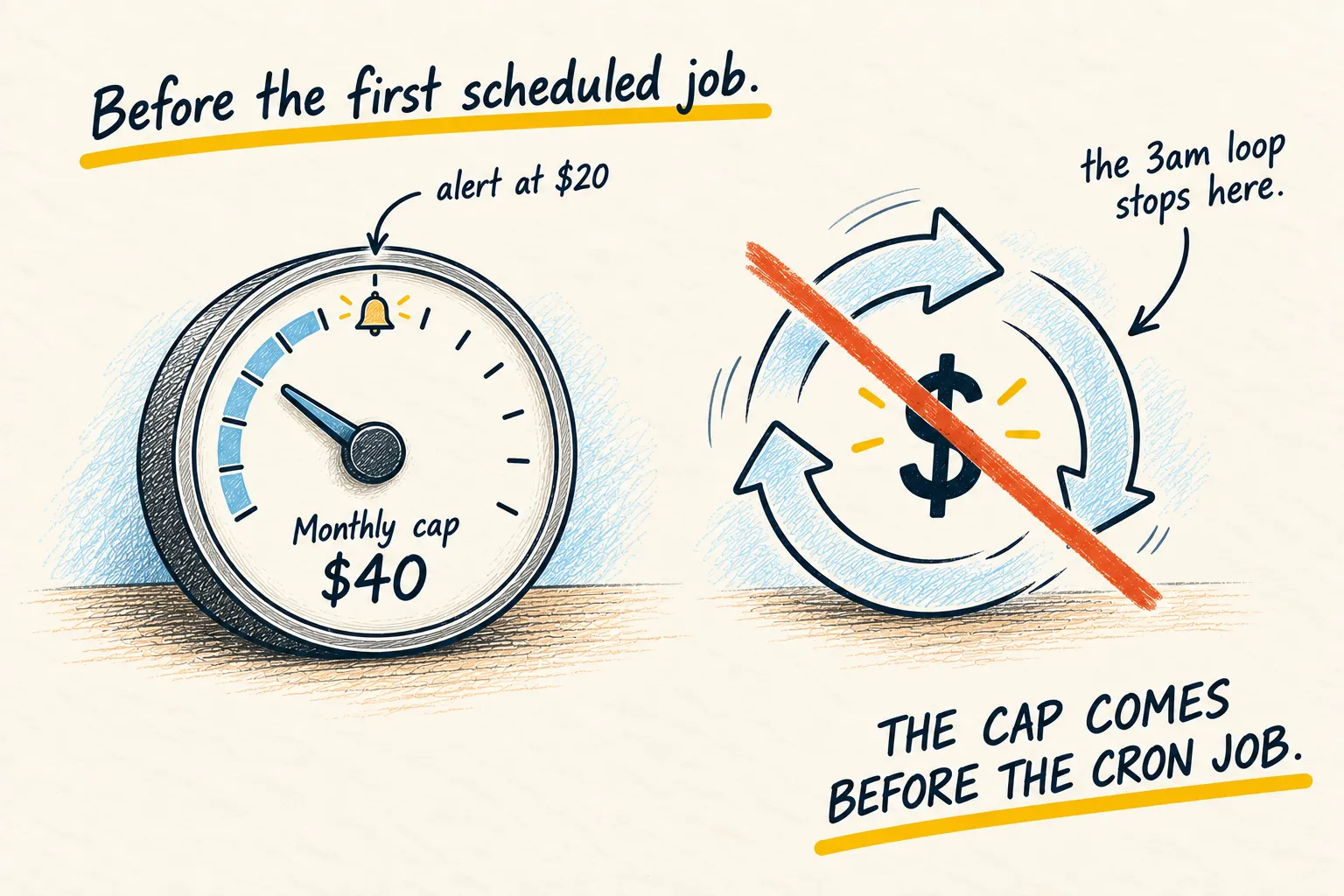
If you’re not sure what a subscription covers versus an API key, that’s its own short page. If you pick anything billed per use, set a spending limit first.
You can also skip this with Choose provider later and come back to it in Settings, under Providers. That’s also where to run a model on your own computer instead.
5. Test it with something small
Ask it one thing with an answer you can check in a second, like “what’s in my Downloads folder?” or “summarise this file”. The Hermes docs give the right rule: if it can’t finish one normal chat, don’t add anything else yet. Get one clean conversation working first.
6. Know what the laptop route can’t do
Hermes on a laptop runs while the laptop is awake. Close the lid and it stops. Scheduled jobs wait until you open it again.
The app has a Keep computer awake setting that stops the computer sleeping while Hermes is in the middle of a job. Closing the lid still sends it to sleep.
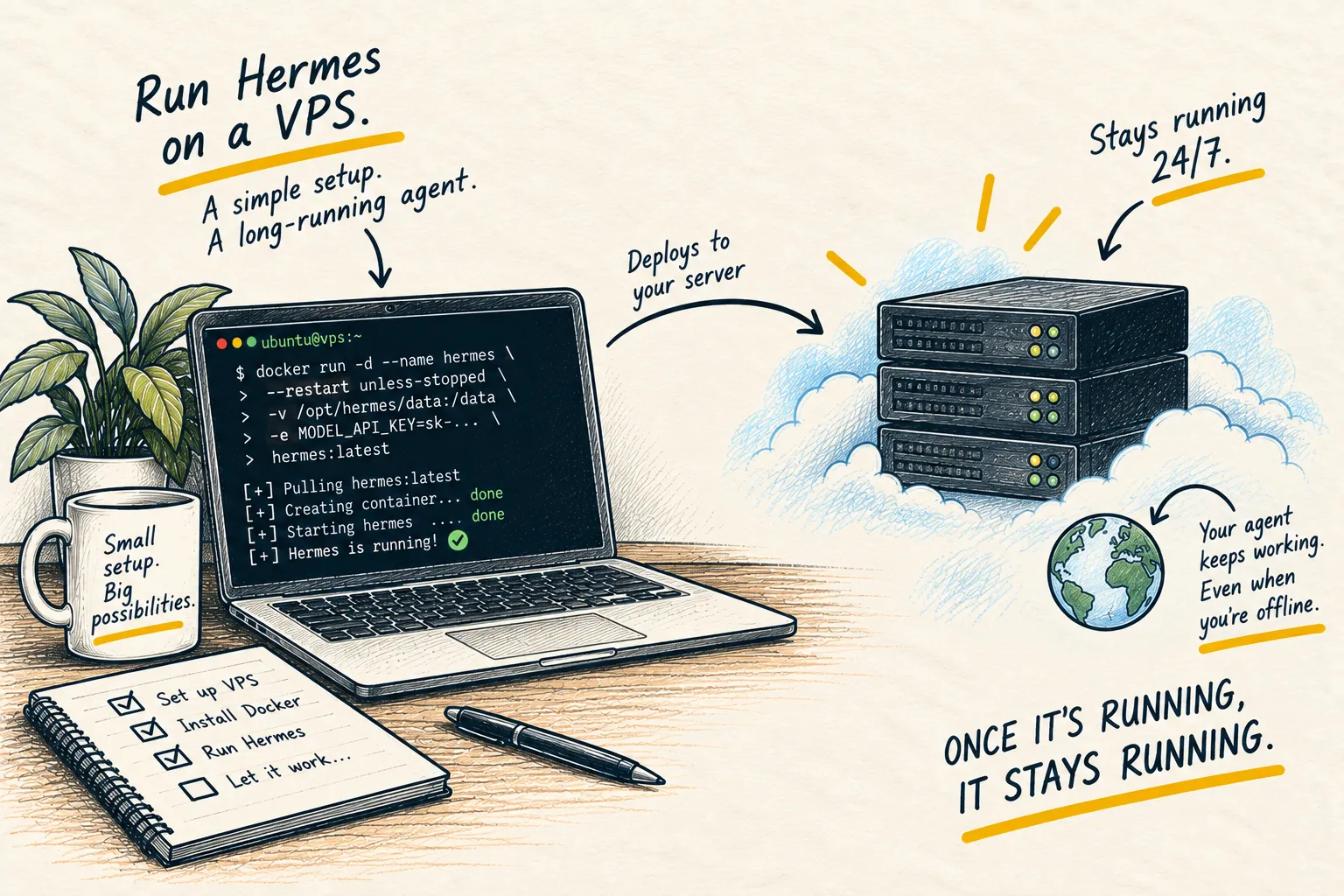
If you want jobs that run at 3am whether or not your laptop is open, Hermes needs a machine that stays on. Running Hermes on a VPS is that route, and the desktop app can connect to a Hermes running there later.
I have run Hermes both ways, on a VPS and on my Mac. I now prefer running it on my own computer and leaving it on as much as I can. My laptop is high end, and getting the same performance out of a VPS is costly.
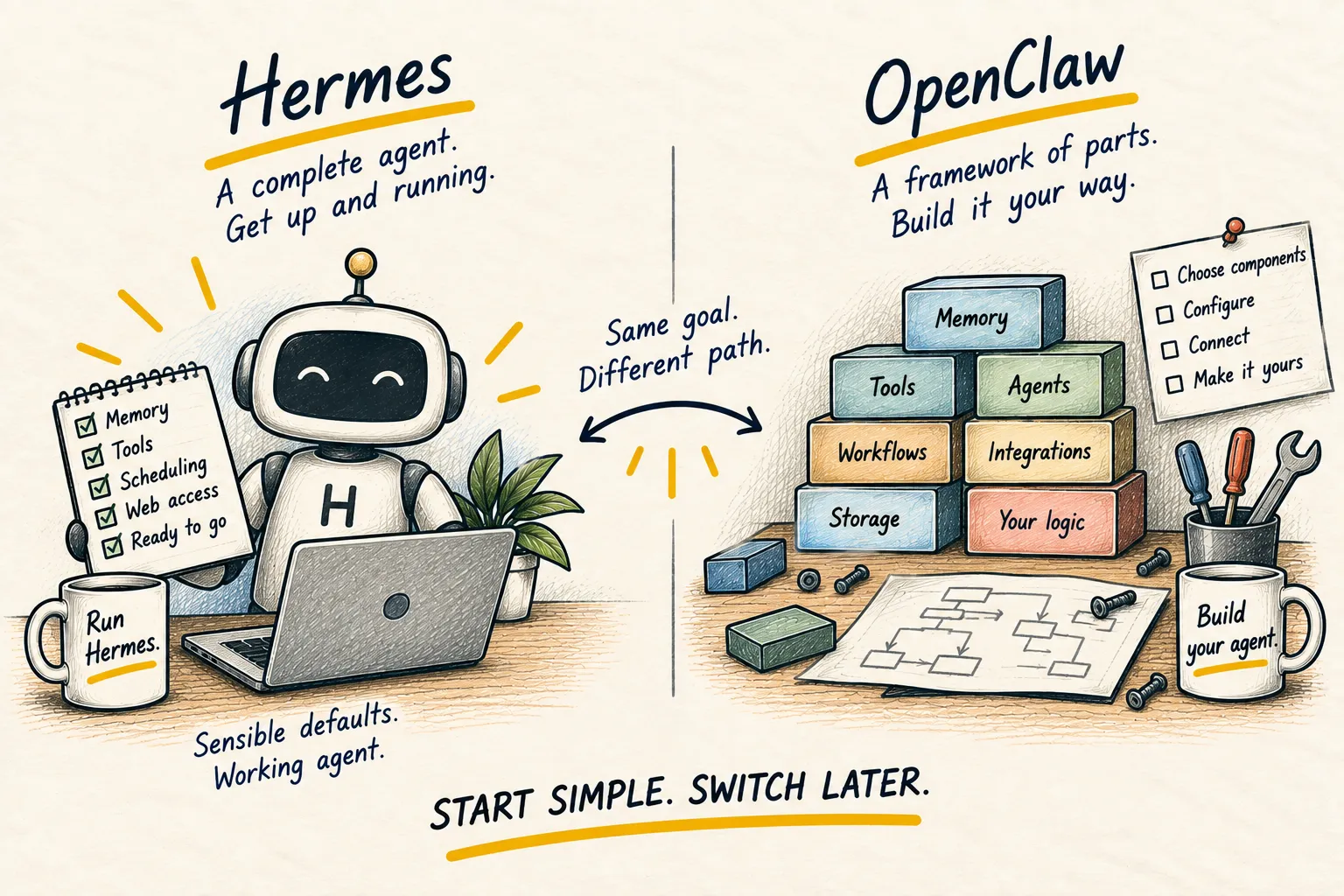
What working looks like. Hermes opens, shows your chosen model, and answers a small question correctly. From there, My setup shows one way of using it day to day, and Hermes vs OpenClaw is worth a read if you’re still choosing an agent.
Common questions
Is Hermes Agent free?
Does it work on an Intel Mac?
Will it keep working when my laptop is closed?
Can I move to a server later?
Do I need the terminal?
What to do next
Related reading
Setups
My current AI setup