Open your server's website on your Mac
A small server often cannot open a browser. Here is how to view its website on your Mac, plus a prompt your agent can use to set it up.

By Nick
On this page
- About 10 minutes
- Free
- Intermediate
Before you start
Learn
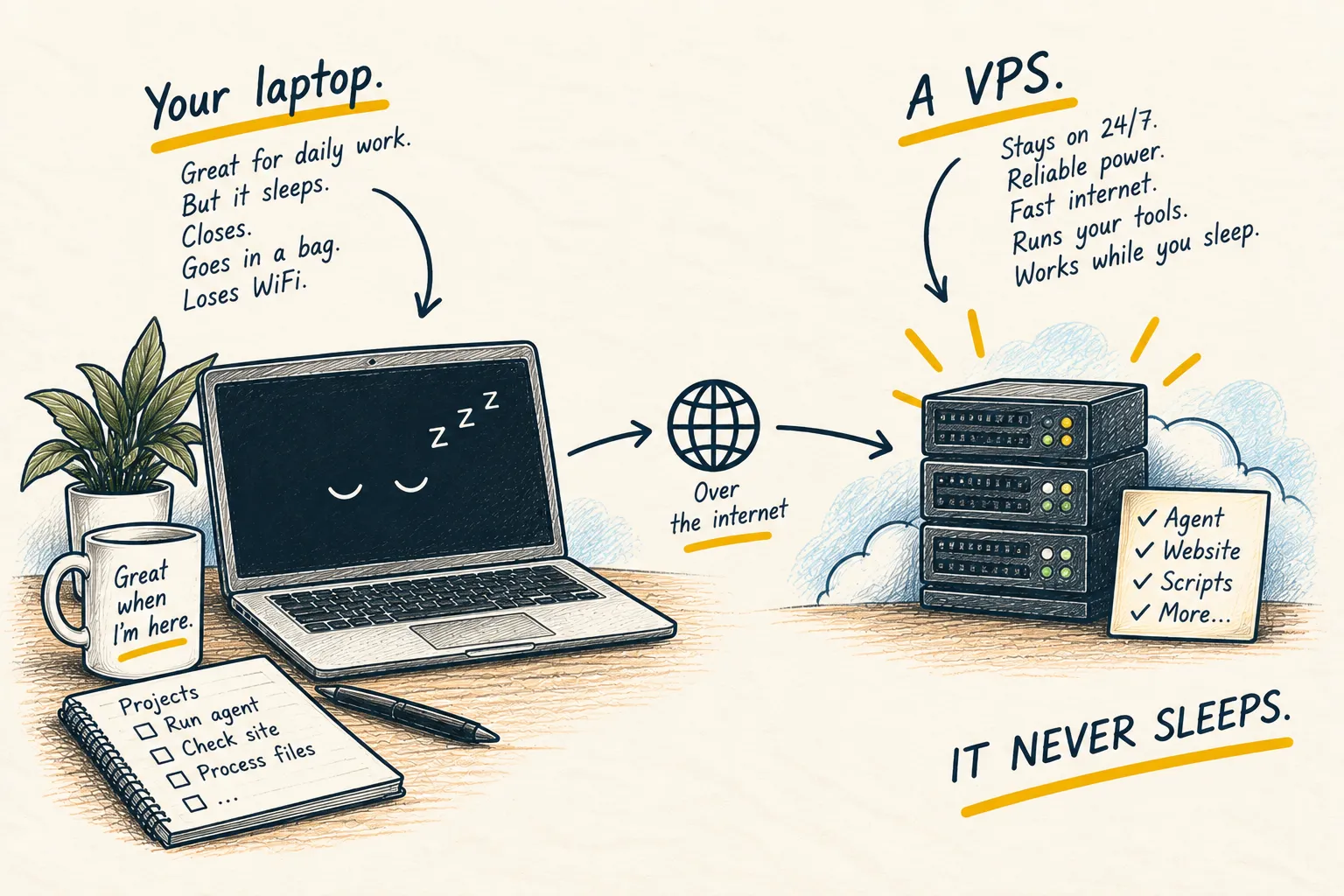
What is a VPS?
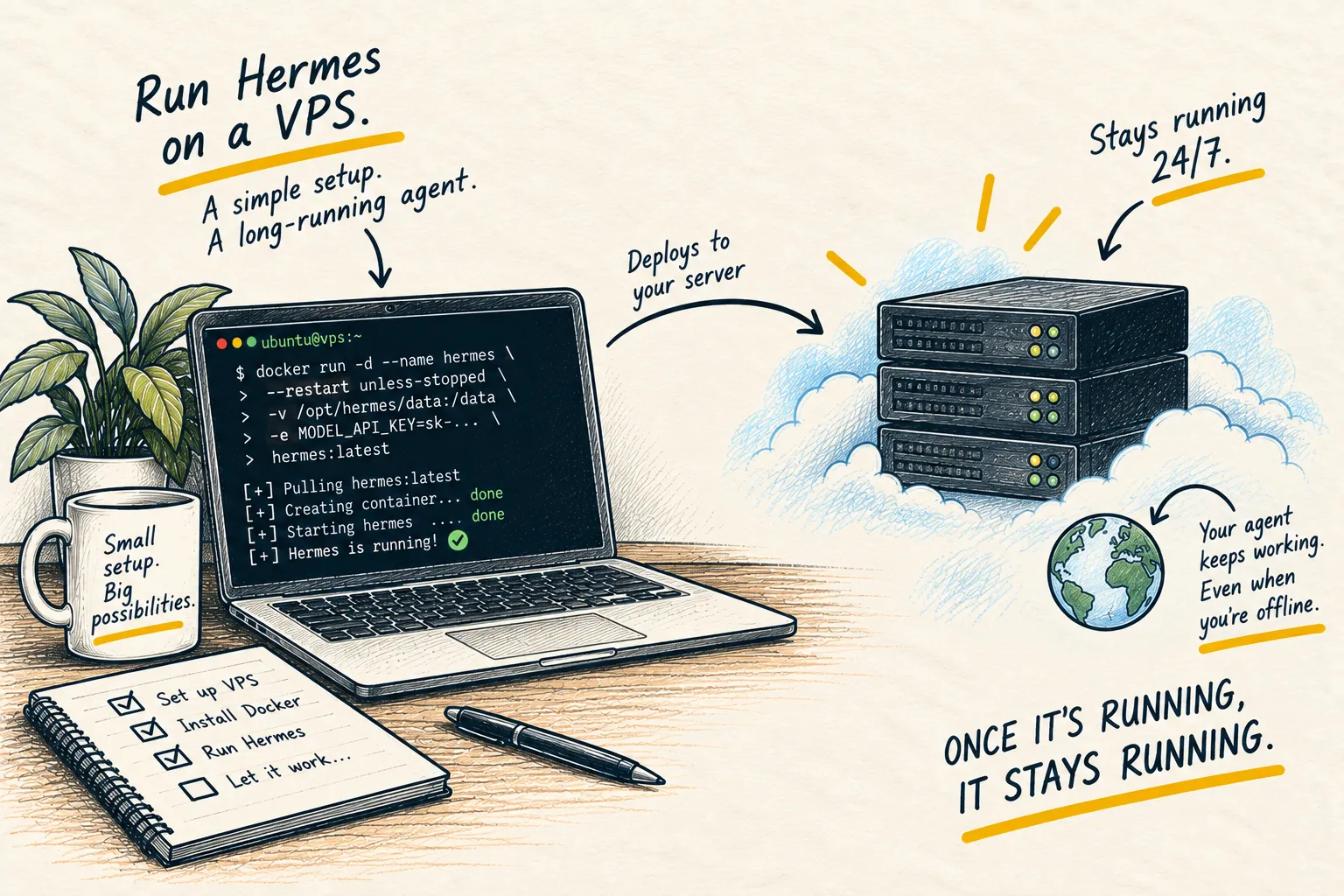
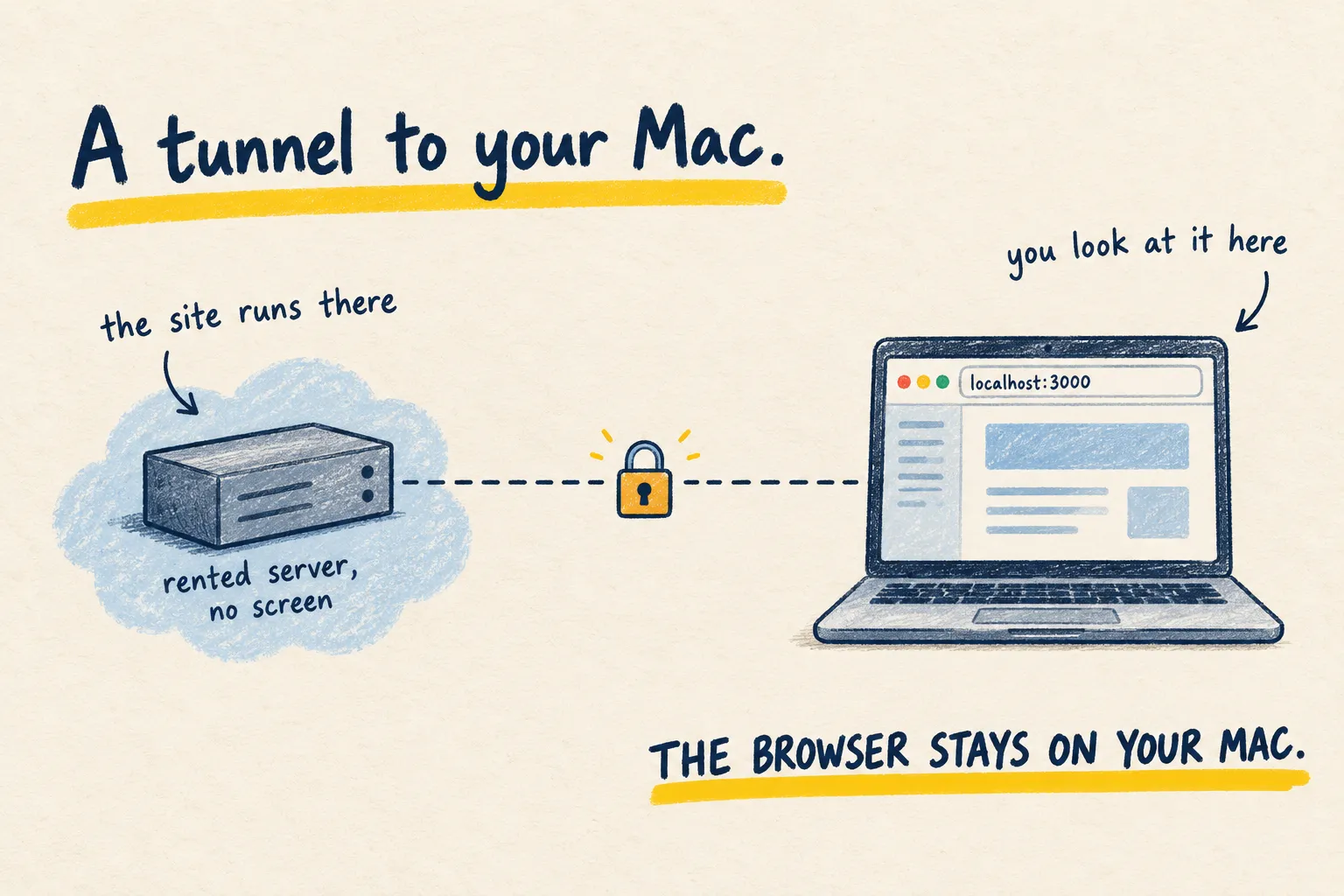
You started a website on a small rented server. You cannot look at it there, because the server has no room for a browser. Open it on the computer in front of you instead.
1. Why the page will not open on the server
A server with about 2 GB of memory can run a small website. A desktop and a browser on top of that is a lot of extra weight, and on a machine that size it often will not start.
That happened on a 2 GB Ubuntu server I use. The site was running. The server still could not show it to me.
2. Open it on your Mac instead
Leave the website on the server. Your Mac borrows the port over SSH (a secure remote login), and only onto itself. The address is 127.0.0.1, which means “this computer,” so you are not putting the site on the public internet.
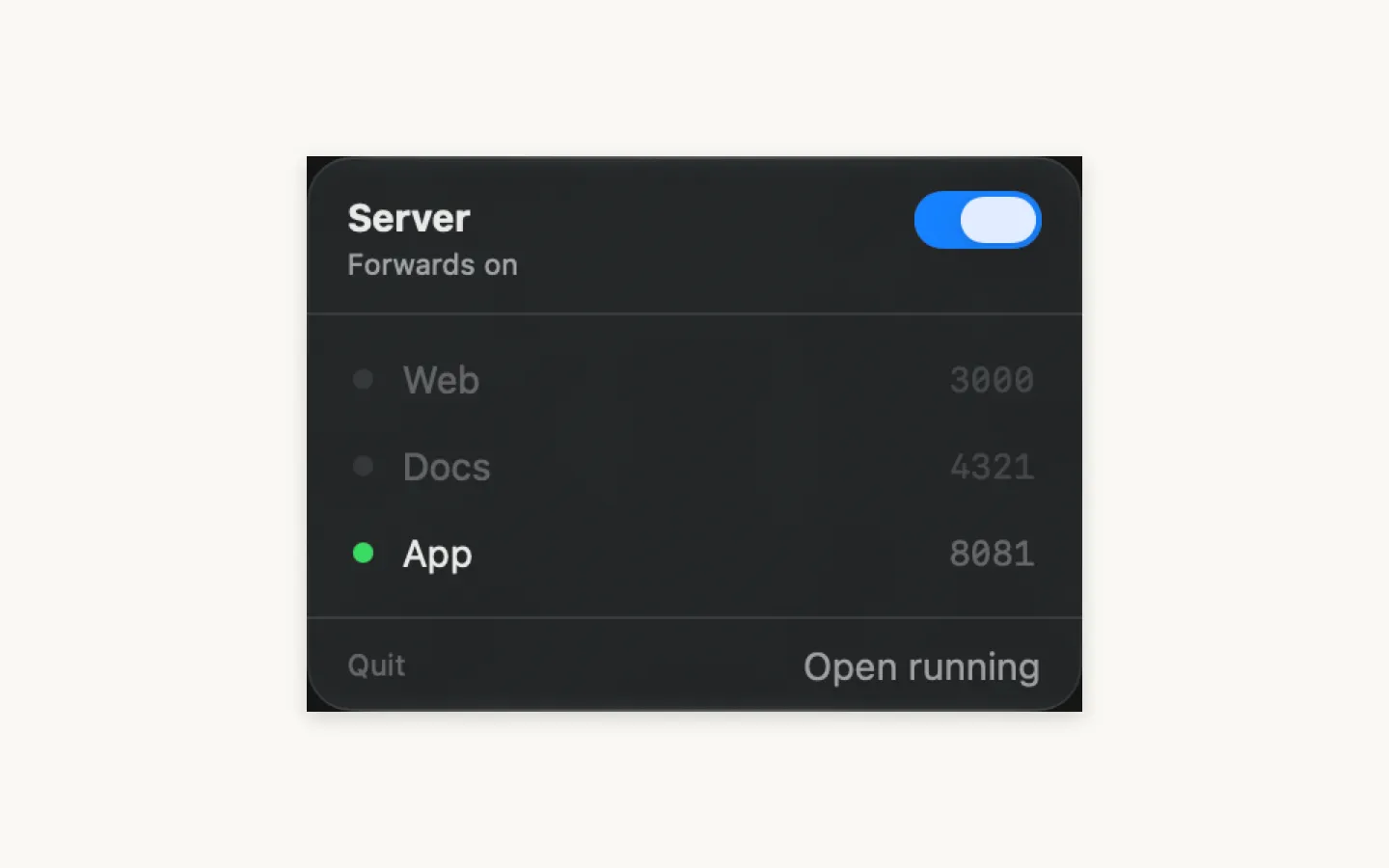
Pier is a small menu-bar icon that turns that tunnel on and off. Click a green row, or Open running, and your browser opens one tab for each site that is actually responding. Grey rows are ports you asked for that are not answering yet.
3. Paste this to your agent
Copy this as it is. Your agent should ask you for the server address and the ports before it changes anything.
Set up Pier on this Mac so I can open websites running on my server from my own browser.

Clone https://github.com/NickBrough/pier, read the README, and install it.

Ask me for the server address, the SSH user, the key if it is not ~/.ssh/id_ed25519, and each port with a short name.

Use only 127.0.0.1 forwards. Do not open those ports to the public internet, and do not change any other SSH host.

When it is installed, turn it on and open the sites that are actually responding.
A name like 3000 Web is enough. You do not need to know what a port forward is called.
4. What you should see
A link icon appears in the menu bar. Click it.
The switch turns the tunnel off when you are done, and back on later. It also comes back when you log in, so you do not have to remember a command.
If a row stays grey, the website on the server is not running. The tunnel cannot invent a page that is not there.