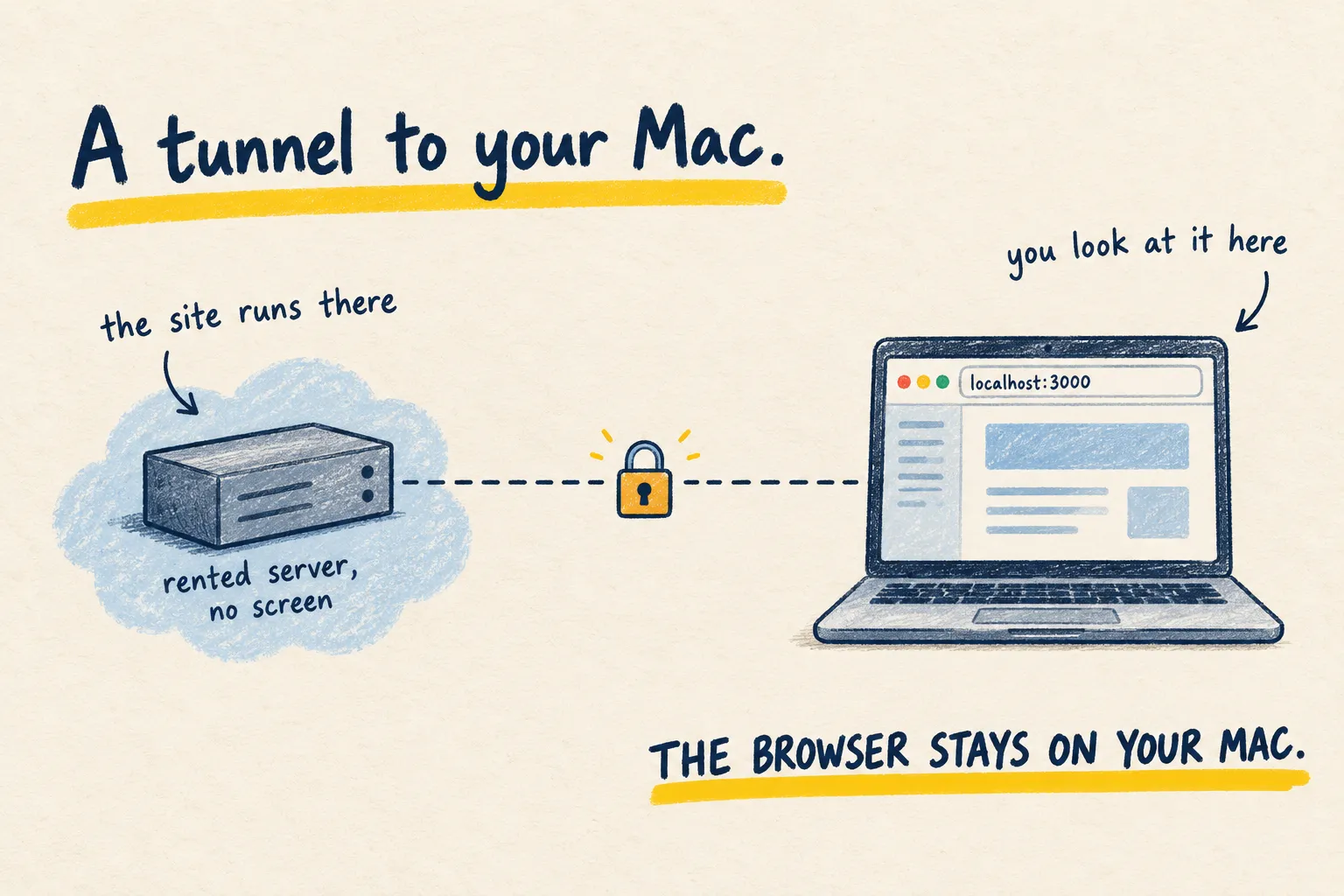
What is a VPS?
A VPS is a small computer you rent on the internet. Here is what that actually means, what it costs, and why you would want one.

By Nick
On this page
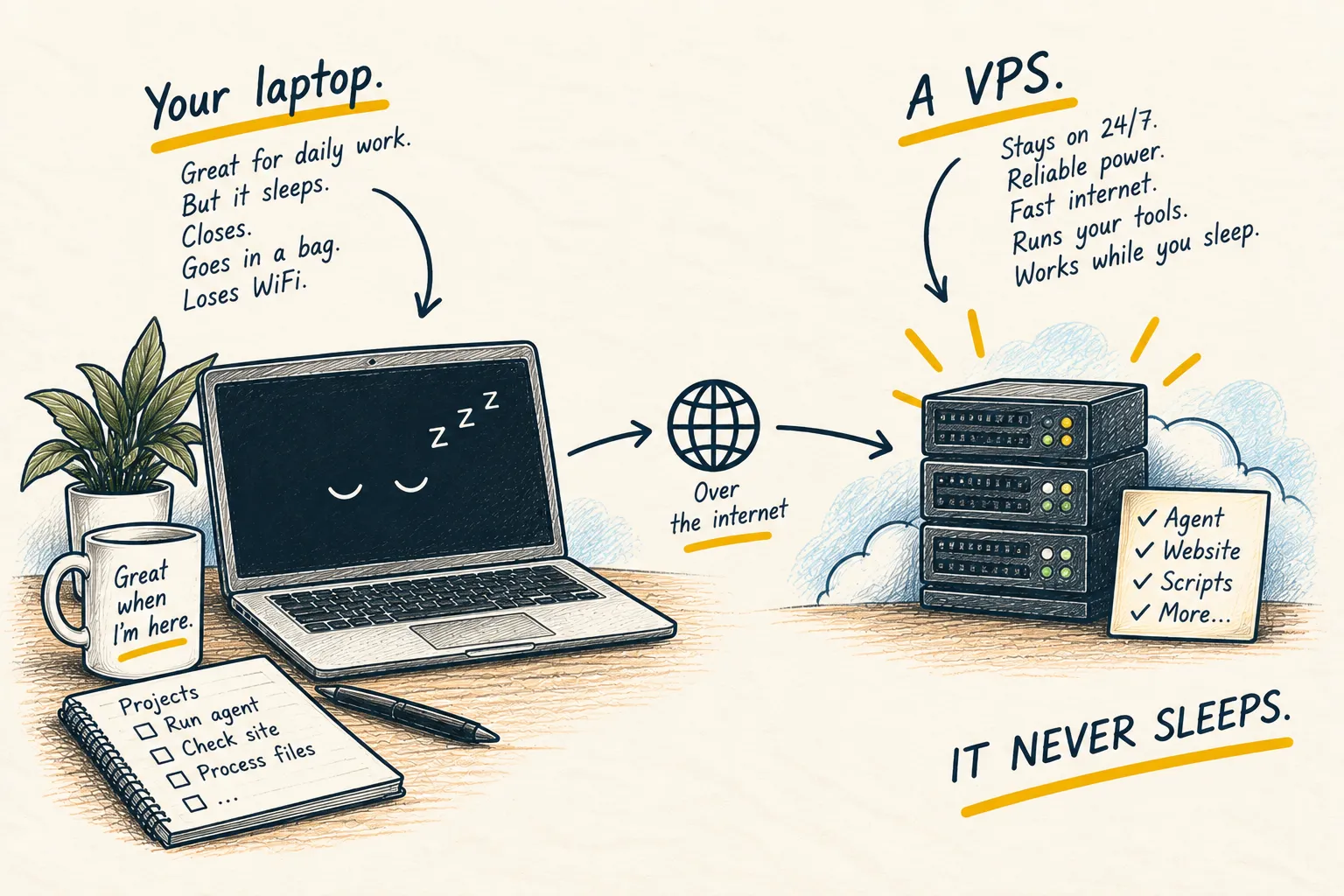
A VPS is basically a small computer you rent on the internet. Unlike your laptop, it stays switched on all the time.
That is the whole idea. Everything else is detail.
Skip straight to setting up the connection to a serverWhy that matters
Your laptop is a fine computer, but it closes. It goes to sleep, it goes in a bag, it loses wifi on the train. Anything that needs to keep running (a tool that checks something every hour, an AI agent that works in the background, a small website) cannot live there.
A rented server sits in a building with reliable power and a fast internet connection, and it keeps running whether you are awake or not. You need one at the point where you want something to keep happening without you. If everything you do happens while you are sitting at your computer, you do not need one.
What “virtual” means
The V in VPS stands for virtual. You are not renting a physical machine. The hosting company has large, powerful computers, and they slice each one into several smaller ones. You rent a slice. In practice you cannot tell: you get an address, a username and a password, and it behaves exactly like a computer you could walk up to, except you reach it over the internet instead of with a keyboard.
What it costs
For the kind of thing this site covers (a personal agent, some scripts, a small site), you are looking at somewhere around five to ten dollars a month. That gets you a modest amount of memory and storage, which is plenty.
Costs rise sharply if you need a graphics card, which is what running large AI models locally demands. That is a different kind of rental and a different budget.
How you actually use one
You connect to it from your own computer using a terminal (a window where you type commands), over something called SSH (a secure way to log in remotely). You type a command, it runs on the server, and you see the result. There is no desktop, no mouse, no windows, just text. Most of what you will do is copy a command from a guide, read it to check it looks sensible, and press enter.
The easiest way to get connected
Renting the server is the part only you can do: choosing a company, picking a plan and paying for it. No assistant should be doing that on your behalf. What you can hand over is the fiddly half that happens on your own computer, which is where most people stall.
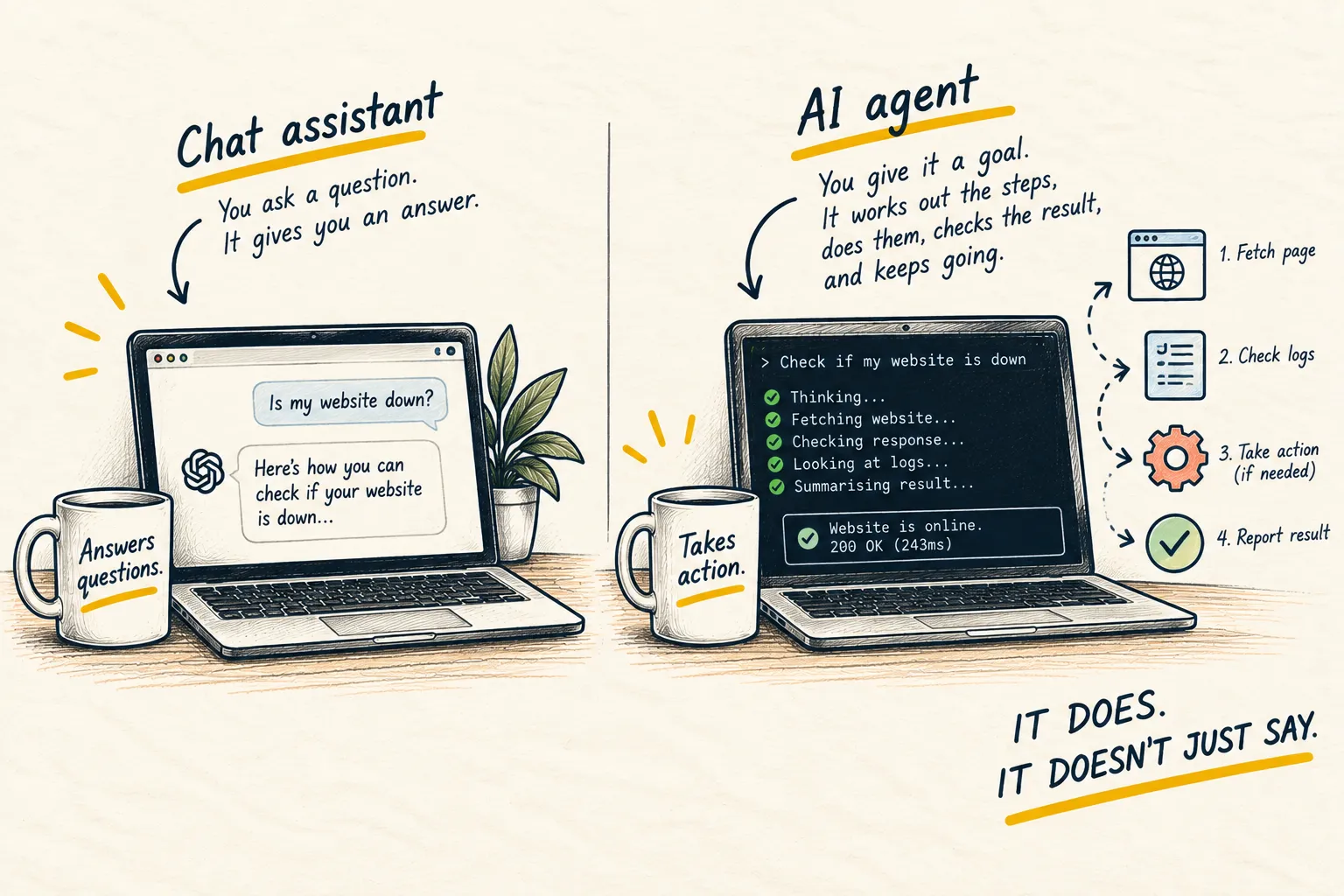
This works if your AI assistant runs on your machine rather than in a browser tab. What an AI agent is explains the difference if you are not sure which you have.
Paste this, as it is. Nothing to fill in.
Please get this computer ready to connect to a rented server over SSH, and then help me
finish the first login safely.

Start by inspecting what is already here: whether I have an SSH key and what type it is,
whether there is an SSH config file, and which terminal I am using. Tell me what you found
and what you would recommend before you change anything.

Then set it up for me rather than handing me commands. Create a key if I do not already have
a suitable one, protect it with a passphrase, and add a named entry to my SSH config so I can
connect by a short name instead of typing an address every time.

I will give you the server's address and username myself, and I will paste the public key
into the hosting company's control panel myself if that is what it takes. Do not ask me for
a password, a private key or any account login, and do not try to create, buy or cancel a
server.

Once I can log in, help me do the two things that matter: turn off password login on the
server so only the key works, and confirm I still have a working session open before we rely
on that change.

Write the result down somewhere sensible: an existing skill, a new skill, or the relevant
AGENTS.md or agent instructions file. Record the short name and what the server is for, and
nothing secret. Read what is already there first, and do not overwrite unrelated guidance.

When you are finished, tell me what you changed on this computer, what you changed on the
server, and the exact command I type to connect tomorrow.Know what “working” looks like. You can connect by typing the short name and nothing else, you are never asked for the server’s password, and a second attempt with password login switched off still lets you in. Test that from a fresh terminal window while your first session is still open, so you have a way back if something is wrong.
Common questions
Do I need to know Linux to use a VPS?
Is a VPS safe?
Can I use a spare computer at home instead?
What to do next
Related reading
Learn
What is an AI agent?