Two ways to let AI use your browser
Two ways to let an AI use a web browser for you. One reads the screen and moves the mouse. The other talks to the browser directly. Which suits a local model.

By Nick
On this page
Before you start
Learn
What is local AI?
Say you want an AI to do something in a web browser for you: check an order, pull numbers out of a dashboard, fill in a long form. There are two common ways to wire that up, and the right one depends a lot on where the model is running.
Skip straight to setting up CDPThe two approaches, in plain terms
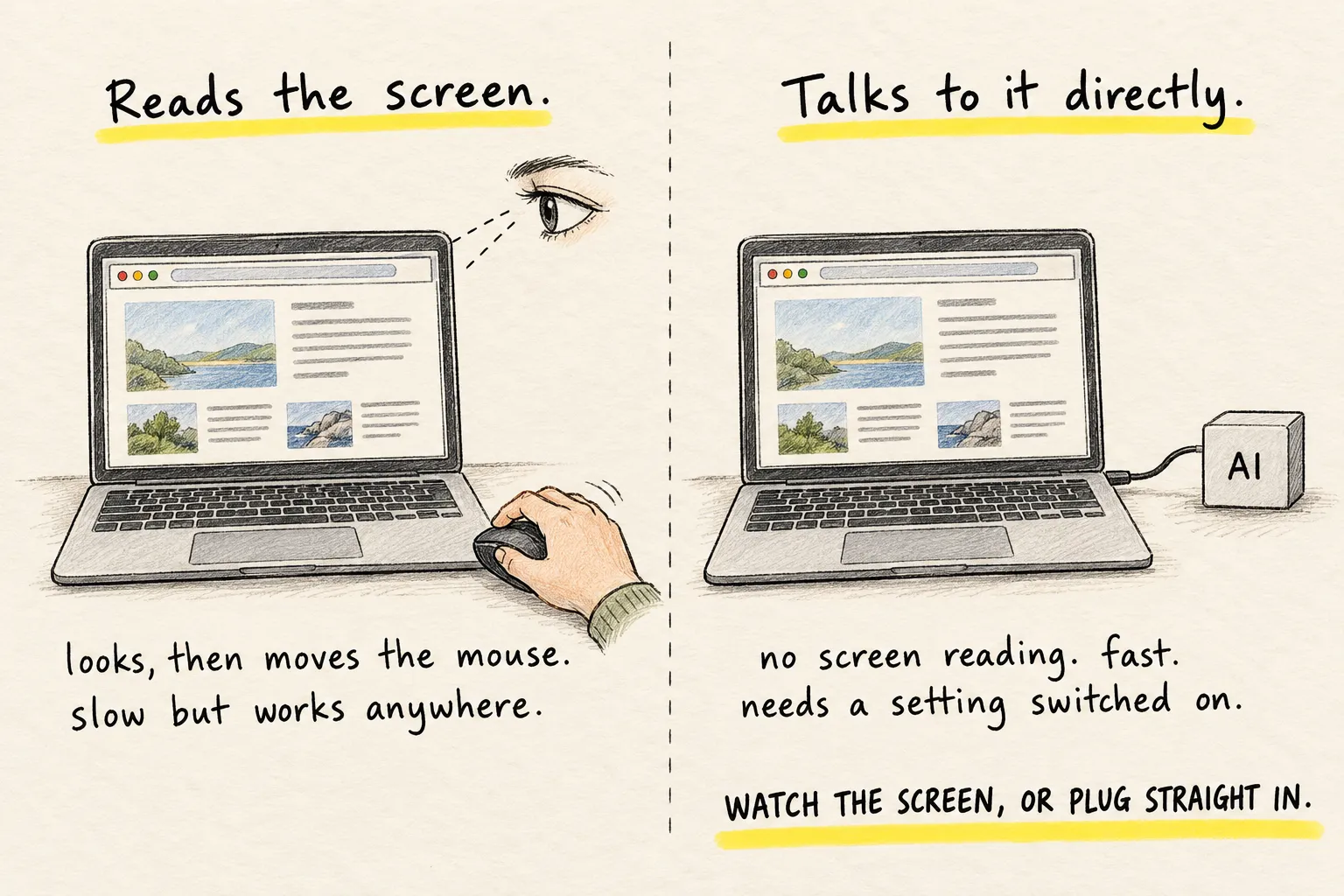
Computer use is the approach where the AI looks at pictures of your screen. The tool takes a screenshot, the model replies with “move the mouse here and click” or “type this”, then another screenshot, and around again. Think of a robot arm holding a remote control with a camera pointed at the television: it works with any set, but it has to squint at the picture to work out what is happening.
CDP stands for Chrome DevTools Protocol, a built-in control channel that Chrome-family browsers (Chrome, Edge, Brave, Chromium) already have. A program connected to it asks the browser questions in text (“what links are on this page?”) and gives it instructions directly (“go to this address”, “click the button labelled Submit”). No pictures involved. That is the cable into the socket on the back of the television: exact, but only for a set that has the socket, and only if you can reach round the back to plug in.
Why CDP often suits a local model better
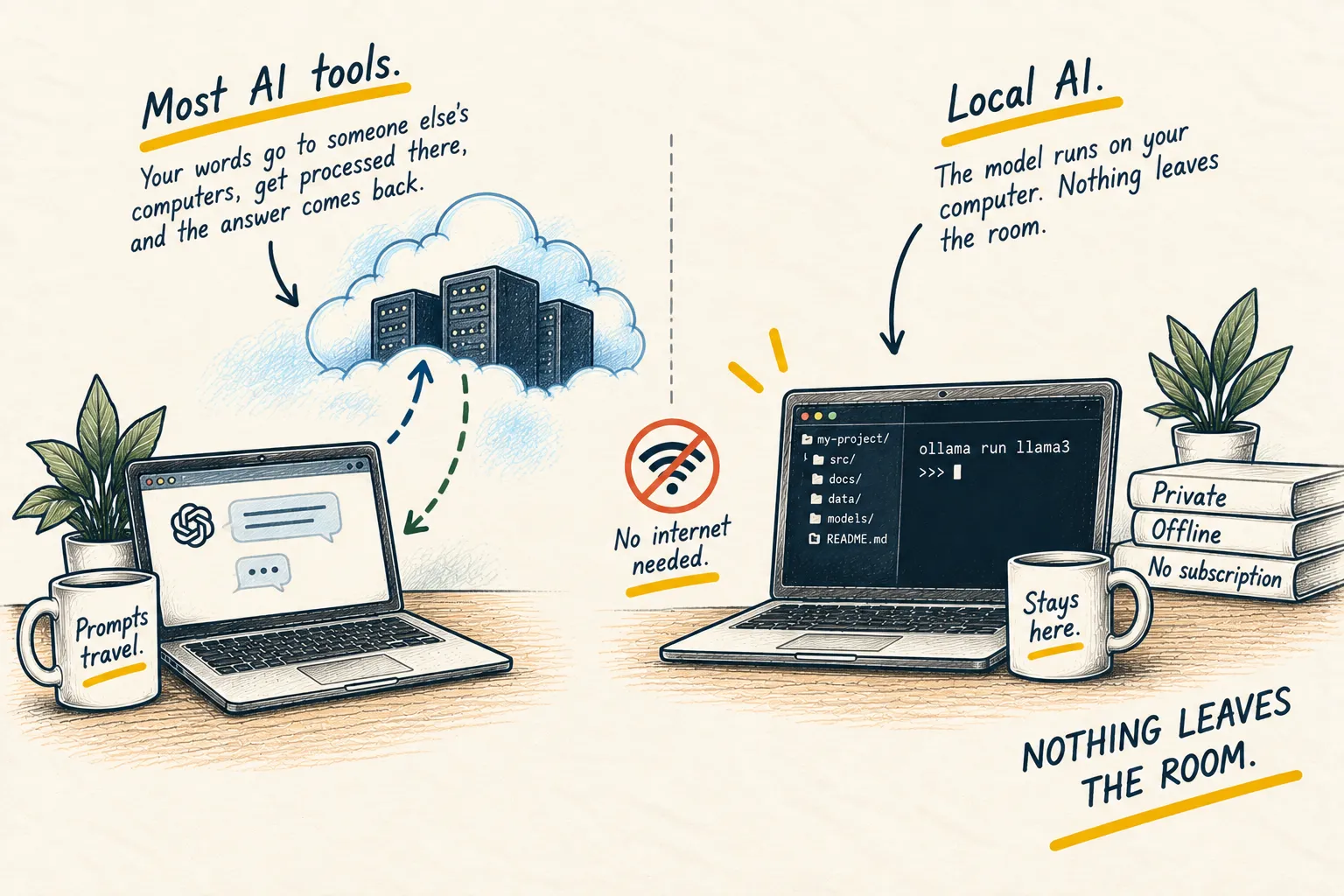
Running a model on your own machine (see what is local AI) means limited memory, limited speed and a smaller model than the hosted services offer. That changes the maths.
Screenshots are expensive work for a small model. Every image has to be processed before the model can say anything, and a ten-step task sends ten or more images. Through CDP, “fetch the text of this page” is one step rather than scroll, screenshot, scroll, screenshot. On a laptop, that is where the waiting comes from.
Small models are weaker at reading screens than at reading text. Working out that a grey rectangle is a button saying “Continue” rather than “Cancel” is genuinely hard. The same information as text removes most of the guesswork.
You may not have a local vision model at all. Plenty of good small models are text-only. CDP lets you use one of those for browser work.
Side by side
- What it controls. CDP: one browser. Computer use: usually the whole desktop, so it can also open apps, move files and use software that is not a website.
- Setup. CDP: the browser must be started in a mode that allows the connection, which is a technical step. Computer use: often a single product you switch on.
- Where it breaks. CDP: sites that block automated browsers, and anything outside the browser. Computer use: misreadings, mis-clicks, and anything that appears only after a slow animation.
- Your screen while it runs. CDP: still yours. Computer use on your own machine often drives the real desktop, so the mouse moves on its own and the keyboard focus jumps mid-sentence. Hosted computer-use products run in a separate remote environment and do not interrupt you like this.
When computer use is still the right answer
- The job is not only in a browser. Renaming files, using a desktop app, or working through an installer are all outside what CDP can reach.
- The thing you need is genuinely visual, such as checking that a layout looks right or reading a number that only exists inside an image.
- You are using a browser CDP does not cover. Safari and Firefox are not Chrome-family.
- You want it working this afternoon and you are not technical. Packaged computer-use tools ask less of you.
The part people skip
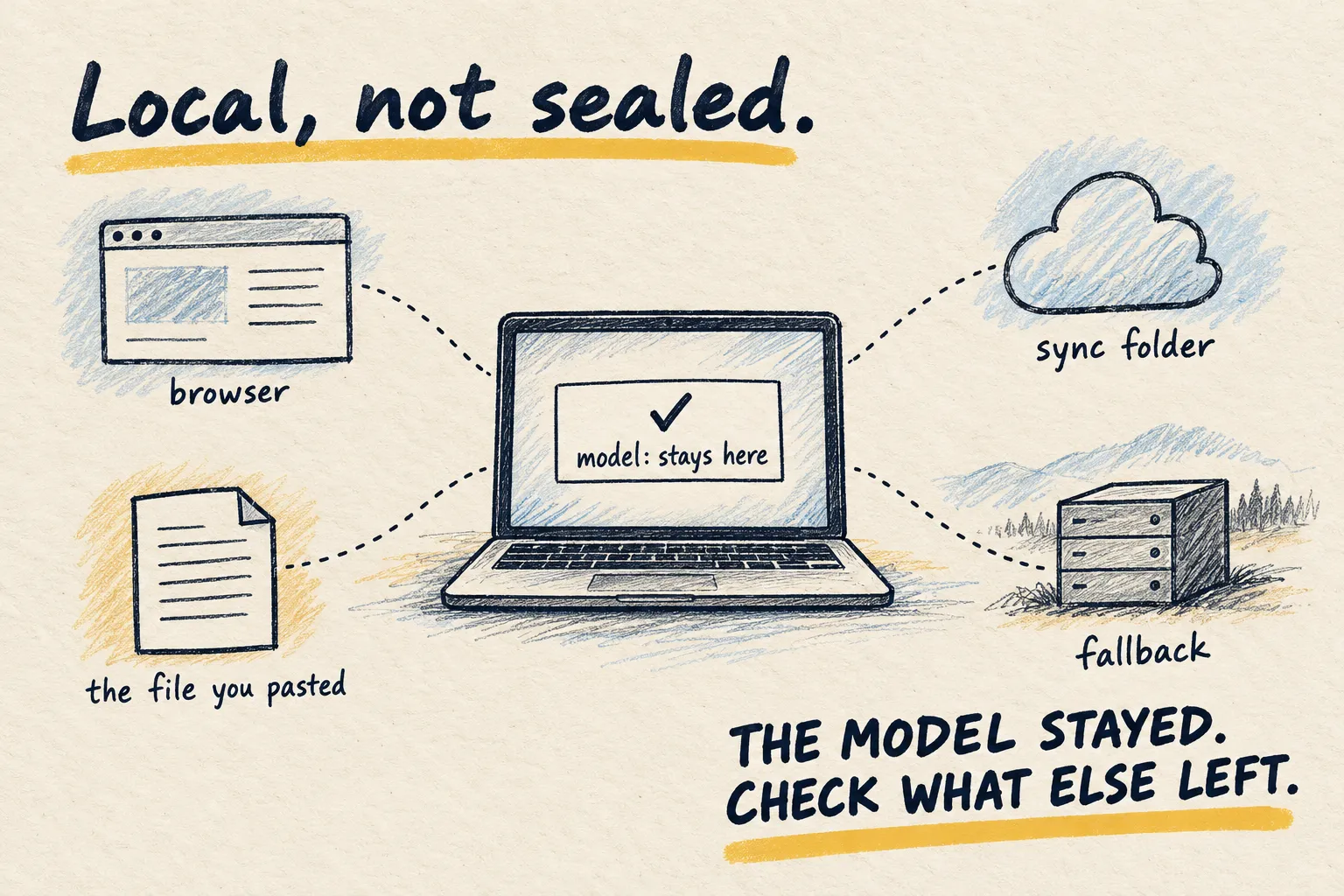
And one thing that gets assumed too easily: a local model does not make the browsing private. The model staying on your machine only means your instructions and the page content are not sent to a model provider. The websites are still live internet services that see the traffic, a browser that syncs history and passwords to a cloud account carries on doing it, and if the setup falls back to a hosted model when the local one struggles, page content goes to that provider. Local model, cloud-connected browser: the data has still left the room.
The easiest way to get started
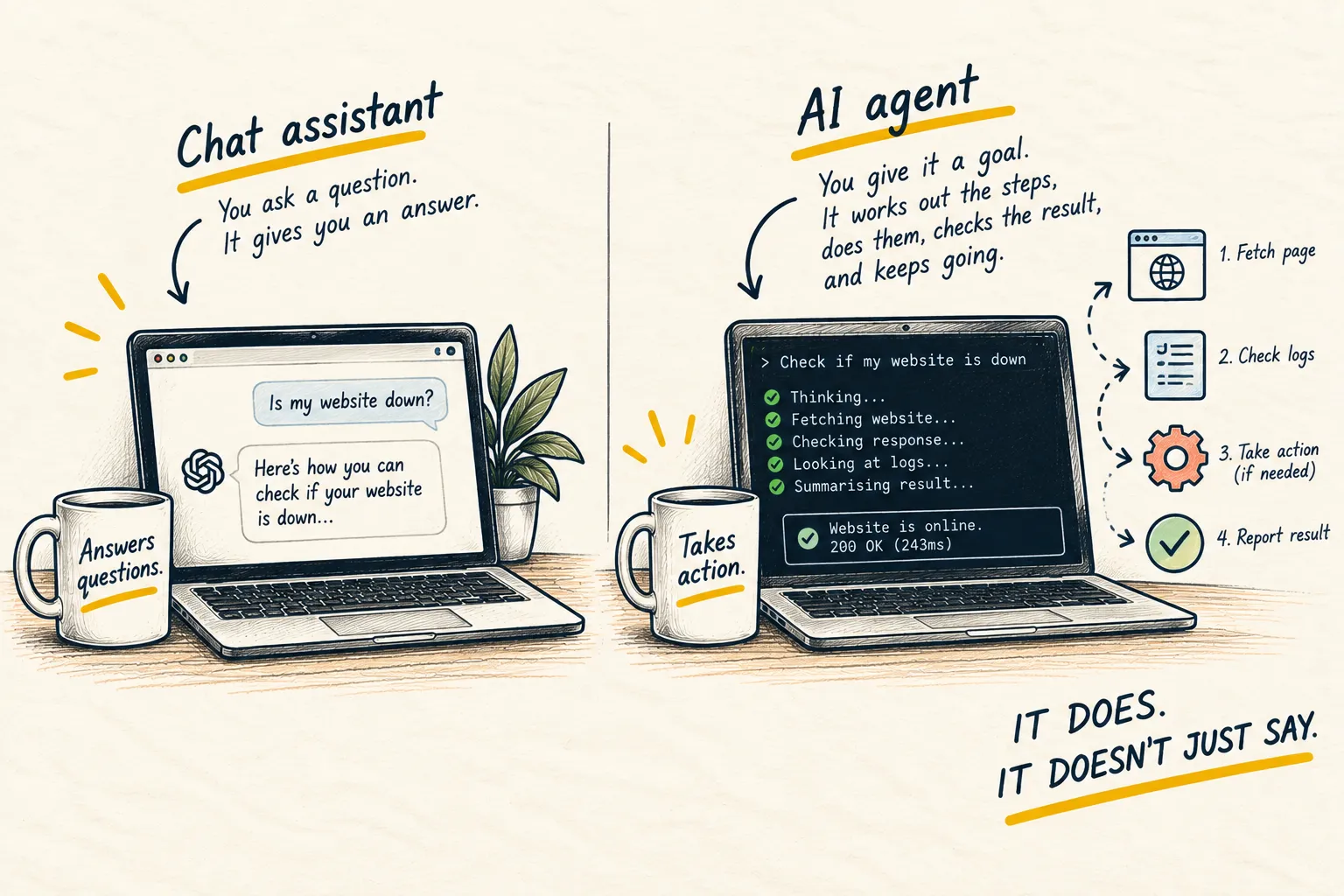
You do not have to work this out yourself. Hand the job to an AI assistant that can see your machine and let it find your operating system, your browser and your tools on its own. Not sure whether yours can reach your computer? What an AI agent is explains the difference, then come back here.
Paste this, as it is. Nothing to fill in.
Please inspect this computer and my current AI and browser setup. I want browser tasks to use
CDP by default instead of screenshot-based computer use, whenever that is practical, and to
fall back to computer use only when CDP cannot do the job, the task is genuinely visual, or
the browser is not a Chrome-family one.

First assess what is already installed and tell me the best arrangement for this machine.
Then, once you have explained the plan, set it up for me rather than handing me commands.

Make it stick somewhere sensible: an existing skill, a new skill, or the relevant AGENTS.md
or agent instructions file. Read what is already there first, and do not overwrite unrelated
guidance or credentials.

Use a separate browser profile. Never ask me to paste passwords or secrets. Stop and ask
before anything sensitive or destructive. Test the connection on a harmless public page.

When you are finished, tell me what you changed, where you documented it, and how future
browser tasks will use it.
The prompt asks for a separate browser profile because of the warning above. A profile is a self-contained copy of your browser with its own history, bookmarks and logins. If your assistant cannot create one itself, it will ask you to: in Chrome-family browsers you add one from the profile icon in the top-right corner. Call it “AI” and sign it into only the accounts the job actually needs.
Know what “working” looks like. A successful setup has three signs:
- Your browser is running with a debugging connection open on your own machine, at a local
address (something like
localhost:9222), not somewhere on the internet. - The assistant reports a successful test against a harmless public page such as
example.com, not a logged-in one. Asking it for the page title is enough. - It tells you where it wrote the setup down, so the next browser task picks CDP up without you asking again.
Before you point it at anything real, try one thing you would not mind it seeing. Only after that works should you give it a logged-in workflow.
If it reports that it cannot set up CDP, do not guess. Pasting commands you found somewhere and hoping is how people break their browser install or open a port they did not mean to. Ask for the exact blocker in one sentence, then either fix that one thing or take the other road: a packaged computer-use product that switches on without any of this.
Common questions
Is CDP safer than computer use?
Do I need to be a developer to use CDP?
If the model runs on my laptop, does my browsing stay private?
What to do next
Related reading
Learn
What is an AI agent?