Reach your local AI from another device privately
Use the Ollama models on your home Mac from your laptop or phone, without opening it to the internet. A free private network, one setting, and two tests to prove it.

By Nick
On this page
- 20 to 30 minutes
- Free on Tailscale's Personal plan
- Intermediate
Before you start
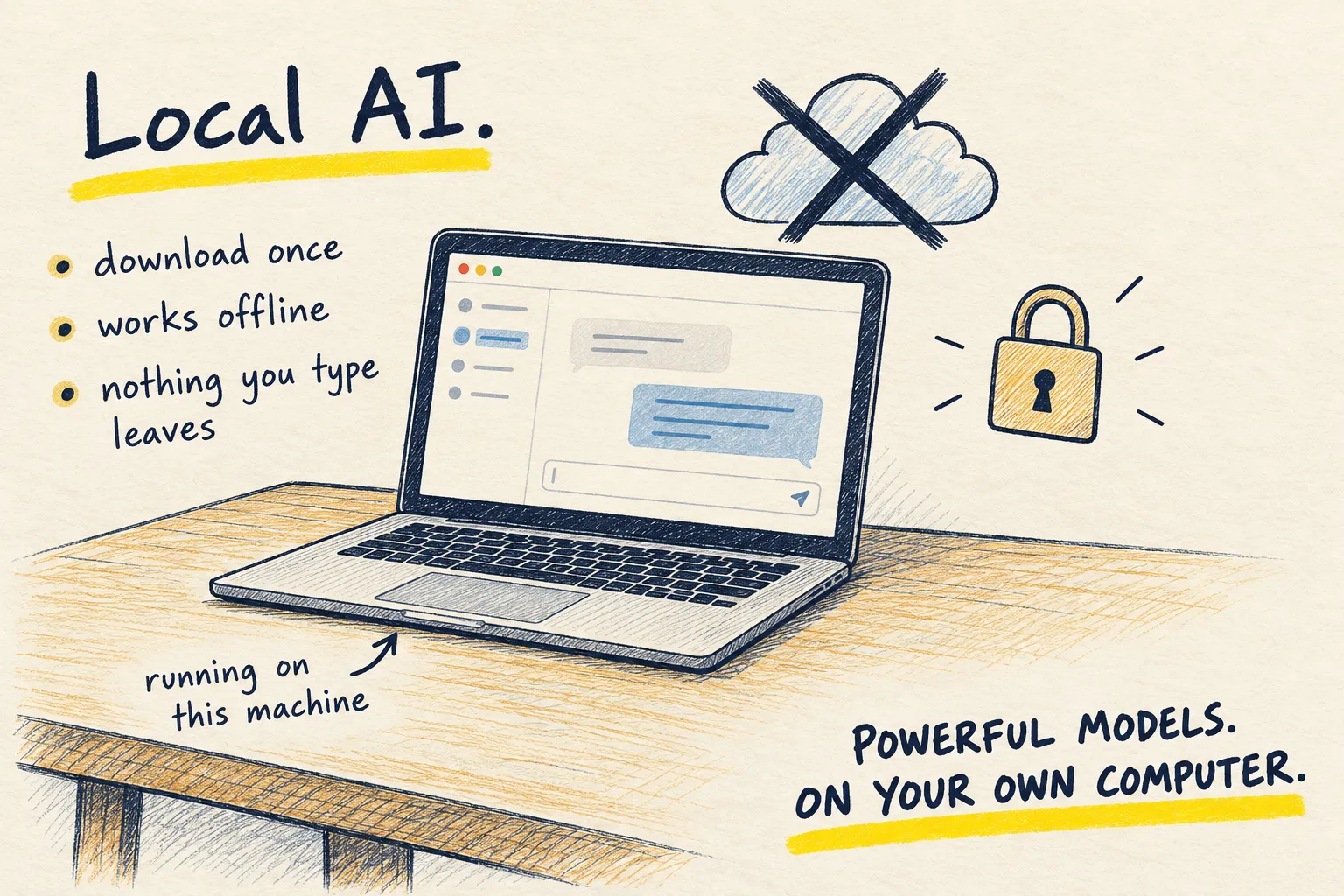
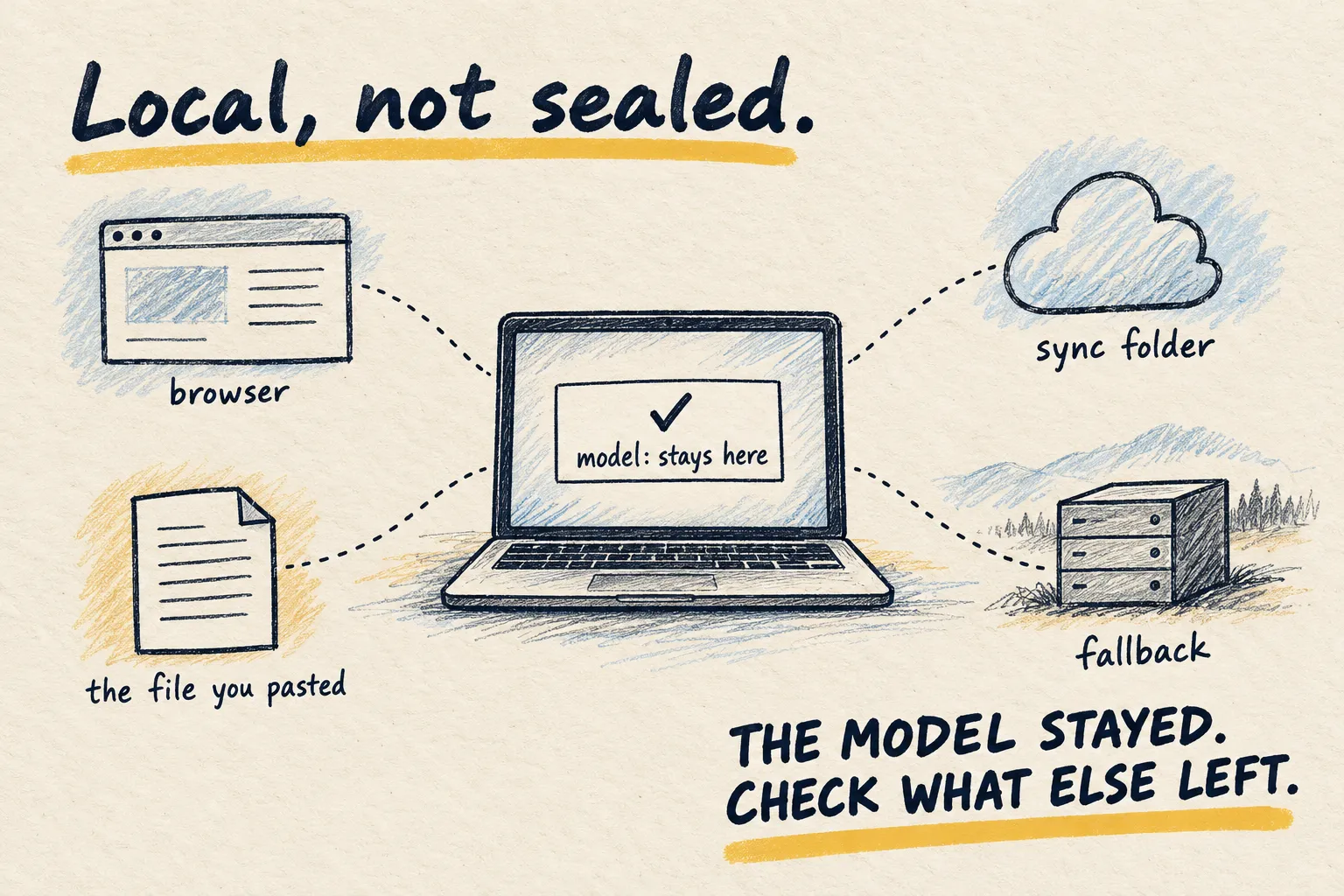
You have models running on the Mac at home, and you want to use them from the laptop in the kitchen or the phone on the train. There are three ways to reach a computer:
- Your home Wi-Fi: anything on the same network. Fine at home, useless on the train.
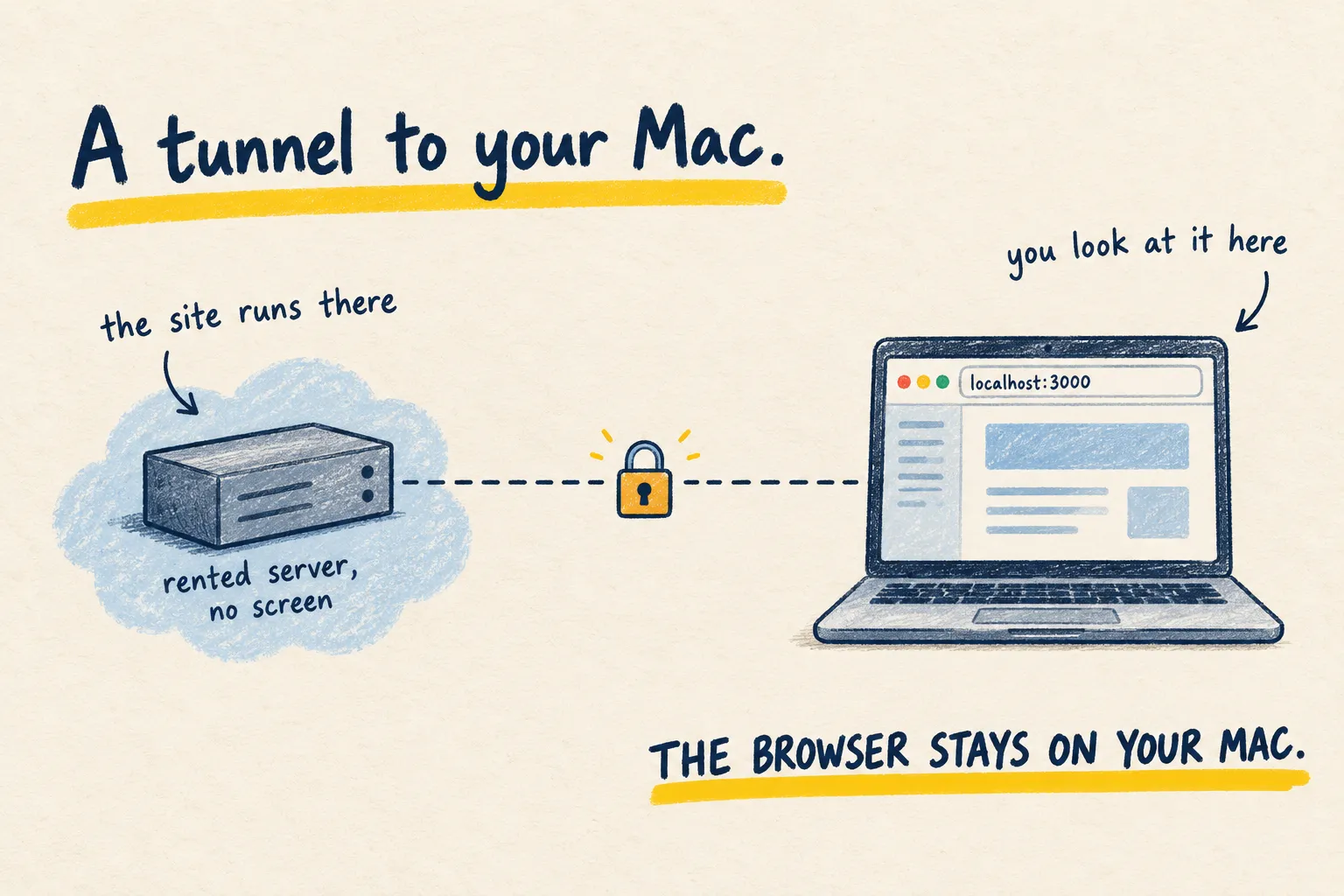
- A private network: only your own signed-in devices, from anywhere. This is the goal.
- The public internet: anyone, anywhere. Never, for this.
1. Know what you are protecting
Ollama has no password. Out of the box it only answers the computer it runs on, at
127.0.0.1:11434 (127.0.0.1 means “this computer”). Anyone who can reach it can use it, so the
whole job is choosing carefully who can reach it.
2. Join both devices to one private network
Tailscale builds a private network between your own devices, wherever they are. Install it on the home computer and on the second device from tailscale.com, and sign in with the same account on both. The Personal plan is free and, as of October 2026, covers up to six people with no limit on devices.
Open the Tailscale app on the home computer and note its name on the network (or its address,
which starts with 100.). You will need it in step 5.
3. Let Ollama answer other devices
On a Mac, open Terminal and run this, then quit Ollama from the menu bar and open it again:
launchctl setenv OLLAMA_HOST "0.0.0.0:11434"This is the method Ollama’s own documentation gives. Read the trade-off before you run it: it makes Ollama answer every network the Mac is on, including your home Wi-Fi, not just Tailscale. On a network you control, that is usually acceptable. On shared Wi-Fi (a flat share, an office, a café), do not do it.
The setting is cleared when the Mac restarts, which makes a handy off switch. You will need to run it again after a restart.
4. Skip the two shortcuts
Tailscale Funnel publishes a service to the whole internet. That is exactly what you are trying to avoid.
Tailscale Serve stays private and looks like the tidier answer, because it would let Ollama keep its default setting. Going by both projects’ code, it does not work with a standard Ollama install: Serve passes on the network name you typed, and Ollama refuses requests addressed to names it does not recognise. This has not been tested, so if you try Serve and get a “403 Forbidden” error, that is the reason. Step 3 is the method Ollama documents.
And never forward a port on your router for this.
5. Test it from the second device
With Tailscale switched on, open a browser on the second device and go to:
http://[home computer's Tailscale name]:11434You should see the words “Ollama is running”. To send a real prompt from a laptop terminal, replace the name and use a model you have downloaded:
curl http://[home computer's Tailscale name]:11434/api/generate -d '{"model": "llama3", "prompt": "Say hello in five words", "stream": false}'Any app that lets you set an Ollama address can now use the same one.
6. Prove that strangers cannot
A private setup you have not tested is a hope, not a setup. On your phone:
- Switch Tailscale off and turn Wi-Fi off, so you are on mobile data.
- Open the same address. It should fail to load.
- Switch Tailscale back on. It should load again.
Also check your router’s settings and confirm there is no port forwarding rule for 11434.
What working looks like. “Ollama is running” loads on your devices with Tailscale on, and nowhere else. If you want to go further, Tailscale’s access rules can limit which of your own devices may reach the home computer.
7. Turn it off when you do not need it
launchctl unsetenv OLLAMA_HOSTThen quit and reopen Ollama. It goes back to answering only its own computer. Removing a device from your Tailscale account cuts that device off completely.