Get a website design you like (without being a designer)
Stop describing the page you want. Ask AI to draw several versions, pick one, then hand that picture to a coding AI and let it build the real thing.

By Nick
On this page
- About an hour the first time
- A paid ChatGPT plan; nothing else to buy
- Beginner
Say you want a page listing your running club’s weekly sessions. You ask an AI to build it and type “make it look clean and modern”. What comes back is grey and cramped. You try again: “more spacing, warmer colours”. Forty minutes later you have a page you do not like.
The problem is not the AI. “Clean and modern” means something different to everybody, and you are trying to agree on a look using only words. So change the order: settle the look in a picture, where a change costs thirty seconds, and build afterwards.
What you need
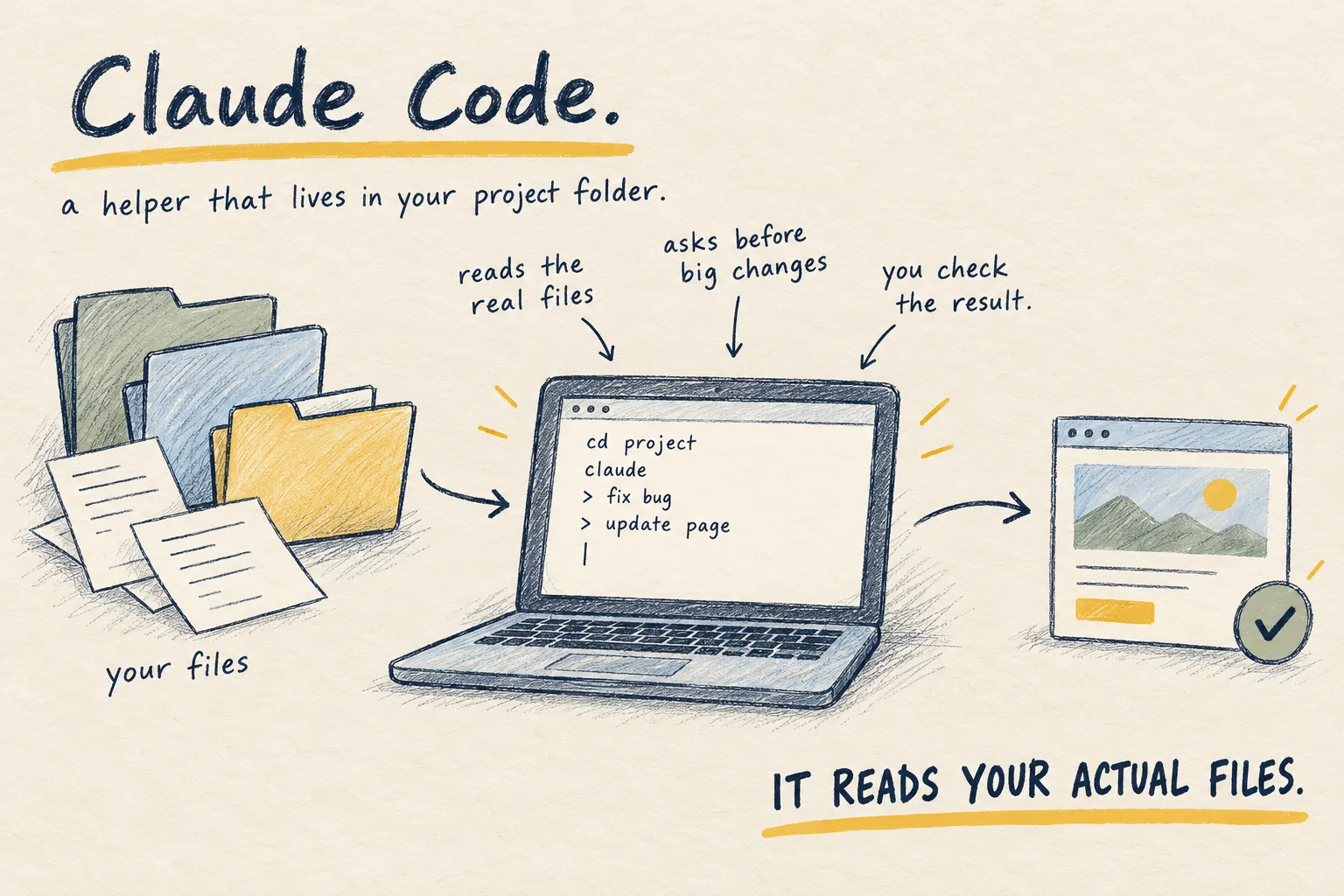
ChatGPT with image generation, and a coding AI such as Codex, Claude Code or Cursor. Unlike a normal chat, those open your files and change them, so copy the folder first. If you know Git, commit; if not, a duplicate folder called “backup” is genuinely fine.
Say only what you know
You are not writing a specification. Tell the AI what you are sure about and let it invent the rest. It has seen far more webpages than you have, and the gaps you leave are where it can beat your own idea.
Say the things only you know: what the page is for and who for, the mood, what must be on it, and anything fixed like your club colours. Leave open how many columns, cards or a table, where the menu goes, what the buttons look like. Pin all that down and the best you can get back is your own idea, drawn slightly better.
A test for any detail: would I mind if it came back different? If not, leave it out. You can add it once you have seen the options.
Step 1: ask for a sheet of options
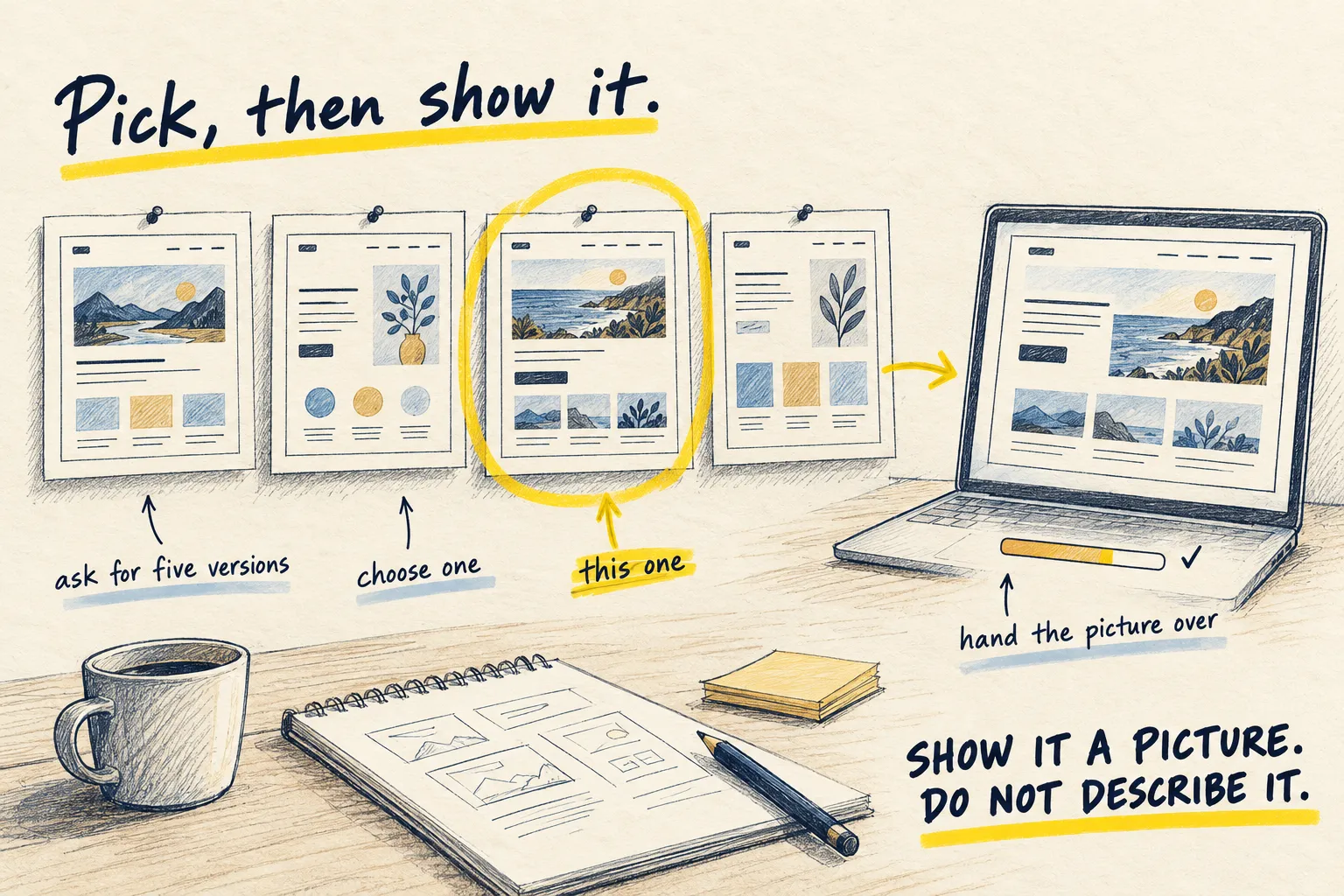
Show me one sheet with six completely different design directions for a webpage listing my running club’s weekly sessions, labelled 1 to 6. Club members check it on their phone. It should feel friendly, not corporate, and it needs the day, time, place and distance. Our colours are green and white. Use your judgement for everything else.
You get one picture with six miniature designs on it: a comparison sheet, not a real page. Reacting to six options is far faster than staring at a blank one. If none appeal, say what is wrong and ask for six more.
Step 2: pick one and narrow it down
Number 4 is closest. Draw that one as a full webpage, with more space between the sessions.
Then change one thing at a time. “Make the day bigger.” “That is too busy, calm it down.”
Stop when you would be happy to see that page on your own site. Tiny differences between two near-identical pictures will not survive being turned into code anyway.
Step 3: get the rules in writing
Describe the design rules this picture follows, in numbers someone could build from: colours, text sizes, spacing, corner rounding, and how one session is laid out.
Read the list and fix anything wrong. The AI is reading its own picture, not measuring it, so some numbers are guesses. Why bother when you have the picture? Because the picture is one page. The written rules are what stop next month’s second page looking like a different site.
Step 4: hand both to your coding AI
Attach the picture and paste the rules in one message. Drag the image file into the terminal (the window where you type commands) in Codex or Claude Code, or into the chat panel in Cursor.
Build the [page name] page in this project so it looks like the attached picture.

- What the page is for: [one sentence]
- Colours, text sizes and spacing: [from step 3]
- What must be on it: [content that cannot be dropped]

Use your judgement for the rest. Suggest a better layout if you see one.

Also please:
- Use my existing files and styles where they exist
- Make it work on a phone as well as a laptop
- Make buttons and links real buttons and links, so keyboards and screen readers work
- Show me the page with no data yet, and when something goes wrong

When you are finished, list the files you changed and anything you had to guess.
Two lines there do the real work. “Use your judgement for the rest” lets the AI improve on your idea instead of copying it. The last line lists its guesses, which is the fastest way to find the holes in what you asked for.
Step 5: compare, then point at one thing at a time
Open the built page next to the picture. Where they differ, decide which you actually prefer, because the built version is sometimes better. Then be specific, because “closer to the picture, please” gets you nowhere:
- “The space inside each session block is too small. Roughly double it.”
- “The day and the time are the same size. The day should be bigger.”
Two notes, then let it try again. Usually two or three rounds, not twenty. Taking the first thing the AI produces is how you end up with the same page as everyone else.
What a picture cannot tell it
A picture is one page, standing still, on one screen size, with tidy made-up content. The AI guesses the rest, so check these yourself:
- Phones. The picture is laptop-shaped. Open the real page on your phone.
- Clicking. Buttons that do something, menus that open, a form that submits.
- Messy content. A session with a very long name, and a week with nothing on.
- Faint colours. Pale grey on white looks elegant and is hard to read.
When to skip this
If you want a bigger button, just ask for a bigger button. The picture step earns its keep when you do not yet know what you want. And if your site already has a look, point the AI at your existing pages instead, because a generated picture will only fight them.
One warning either way: image AI gives you the average of what it has seen. The cure is your own taste. Keep a folder of sites you like, say what to borrow, and keep asking for changes.
Try it once
Take one page you have and do not like. Six directions, pick one, two rounds of changes, get the rules written down, hand both to your coding AI, then compare and point at two things.
That is about an hour, and it will tell you whether this suits you better than any article can. If it does not, you still have your backup.